
The Feed is designed to be the central rallying point for Monarch users. The overriding goal is to drive Actions and Results by providing you with the data you need when you need it. Easy to use and always actionable, but it’s what you do with the information that counts! Let Matrix be your guide!
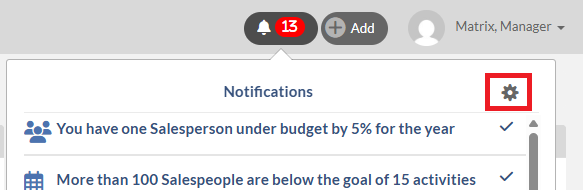
The Feed can be found in the upper right-hand corner of any page. By clicking on the bell icon, you will be provided with all your Alert Results, plus other great information as shown below. There are also plenty of others about your most common sales questions. Please see the full list below of specific items and definitions. 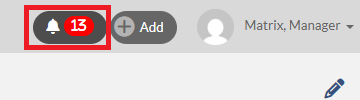
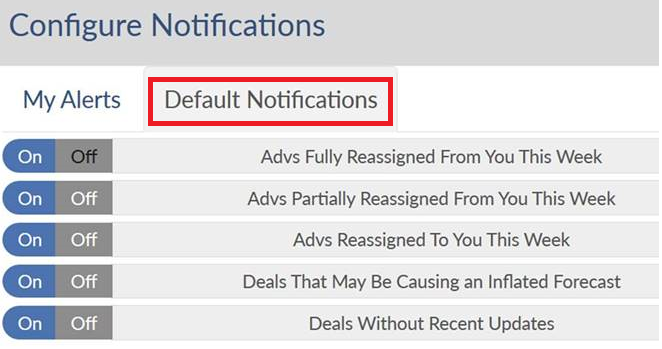
You can configure your default feed notifications by selecting the gear icon in the feed and clicking the Default Notifications tab.
Notes:
- Updates happen every 10 minutes.
- Can snooze an Item by clicking the checkmark. It will come back when there is a change to the item.
- Clicking on the item to act causes the item to remove from the list.
- To turn off the Alerts pushing to the feed, you will need to disable the Alert.
List of specific items and definitions:
Note: please click on the bell notification names below, if you would like to view more detail.
- Accts Fully Reassigned From You This Week (AE) – Salespeople can see when an entire account was reassigned from them and given to another salesperson.
- Accts Partially Reassigned From You This Week (AE) – Salespeople can see when part of an account was reassigned from them and given to another salesperson.
- Accts Reassigned To You This Week (AE) – Salespeople can see all of the accounts that have been reassigned to them by a manager for the current week. It is not “last 7 days”.
- Accts Requested to be Reassigned (manager) – As a manager, these are the accounts that your sales team has asked your permission to own. The results are the same as the Requests card on the Prospecting page.
- Accounts with Missing Address information - shows the Accounts that their information(Country, Address, City, State or Zip) is missing.
- Activities to be automatically completed - shows the past due activities that will be automatically completed
- Agencies with missing Address information - shows the Agencies that their information(Country, Address, City, State or Zip) is missing.
- Contacts with missing Rac information - shows the Contacts that their information (title, email or primary phone) is missing.
- Deals That May Be Causing an Inflated Forecast – These are the deals that are open and have pending dollars for the same timeframe where billing dollars exist. We use a general rule of thumb that in an ideal world, you either have pending or booked for a single month by an Advertiser/Salesperson/Outlet. Anything else has the potential to be incorrect. NOTE: This is only for the logged in User and not for their Managers.
- Deals Without Recent Updates - "Recently" means 7 days in this case. Often a manager imposes a "deals must be updated every Wednesday" kind of thing and they want to talk about the deals that made no progress in the last week, assuming others are on track. You would only care about the open pending/proposed deals that have not been updated. Closed deals should have a shared understanding that they will most likely not be updated.
- Deals Won This Week – Deals that are currently Closed-Won this week. If the deal was reopened this week then it will no longer display. This is not “last 7 days”.
- Leads To Approve (manager w/ permissions) – Lead approving managers have an easy way to see all of the leads that a salesperson has sent to them for approval. Clicking through allows you to approve or deny the lead.
- Notify User on Account & Agency Maintenance - shows all the Accounts or Agencies that have been renamed or merged due to the maintenance in the last 7 days.
- Recently Saved Clarity Activities - shows the new Activities that are created from Emails and Calendar Events, over the last 7 days, flowing through Clarity.
- Potential Contacts Recently Created from Clarity Activities- shows the new Contacts are found from Emails and Calendar Events, over the last 7 days, flowing through Clarity that are not yet Contacts in Monarch and provide you with a way to Accept them by filling out more information or to Reject and Block them so future interactions are not tracked by Clarity.
- Rejected Account Requests - shows the accounts that have been submitted to your manager, but they got rejected.