To access the data card, please navigate to Home from the left navigation pane.
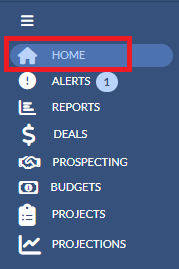
Tabs on Home page
A home page can contain multiple tabs (pages). Each tab can contain 9 data cards (slots) and have below elements:
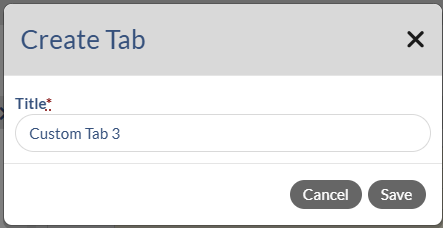
 1. (+) - Click this button to add a new tab. Once you click (+), the below dialog box will display asking you to enter the new tab 's name and then you can add whatever cards you wish to the tab. The tab you created can be renamed or deleted.
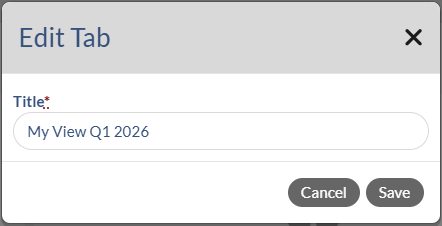
2. Pencil icon - Once you click this icon, the Edit Tab dialog will display and you can update the tab's name on this dialog box. Note that tab's name cannot be updated if the tab is set up by your Corporate.
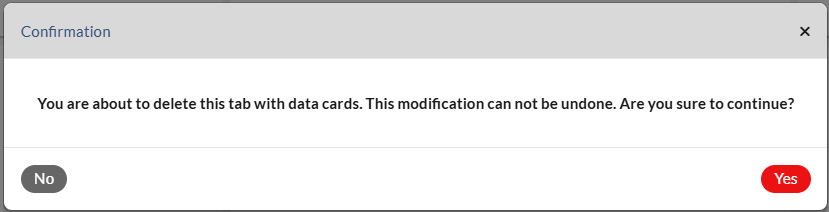
3. X icon - Click this icon if you would like to remove the tab. Once the tab is removed, all data cards in the tab will be automatically removed. Once you click X, the below message will show. You can click Yes to confirm. Note that any tabs can be removed excepts the first tab and tabs that are set up by your Corporate.
Notes
- Each tab, you can add or delete any data cards except that tabs that are set up by your Corporate. The Corporate tab can only be modified by Admin.
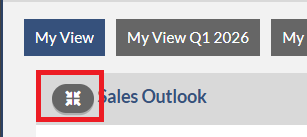
- All cards on the page can be expanded and viewed as if they were your own cards and reports. It does not matter which tab they are on. To view the expanded view, please click the data card then the expended view will display. To go back to the previous page, click the collapse button on the left top of the data card as shown in the below screen shot
- All cards will always display with your partition in mind, no matter how they were created. This may mean, at times, some cards on the Corporate tab may not display information for you depending on how the creator chose to filter the information.
- On the Corporate tab, you may change the setting, filter, etc. However, upon refresh the settings will revert back to the admin configured options so as to keep a consistent message across the organization.
- Each card slot has 2 states:
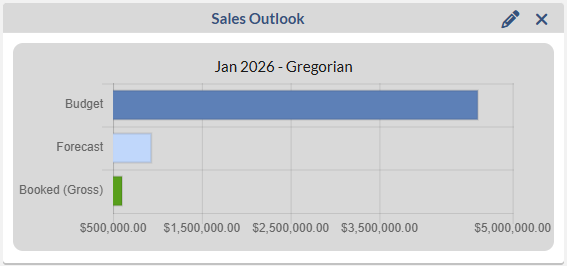
- It already has a card. Its name will display at the top of the slot.
- A card hasn't been added. It denoted by the “+” button in the middle of a card. You can click the "+" button to add a card. For more instruction, please click here: Monarch - Home Page Data Cards