
When configuring this Alert if you choose an Outlet to spend in a Market you also have to choose at least one Outlet NOT spending in the same Market.
NOTE: If you try to choose an Outlet not spending in Seattle, for example, when you’re only selecting spending in Atlanta you will receive the below error:

To set up this Alert, please follow the below steps:
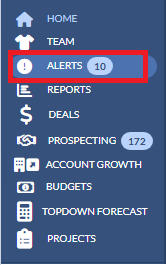
1. Navigate to the Alerts from the Navigation Panel on the left-hand side of your screen and click the Alert Settings on the top right corner of your Alert Center.

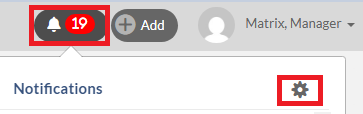
Note that you can also add the Alert by navigating to Bell notification on the right top of the page and click Gear icon.
2. Click (+) Add Alert button found on the top right-hand corner of the My Alerts dialog.

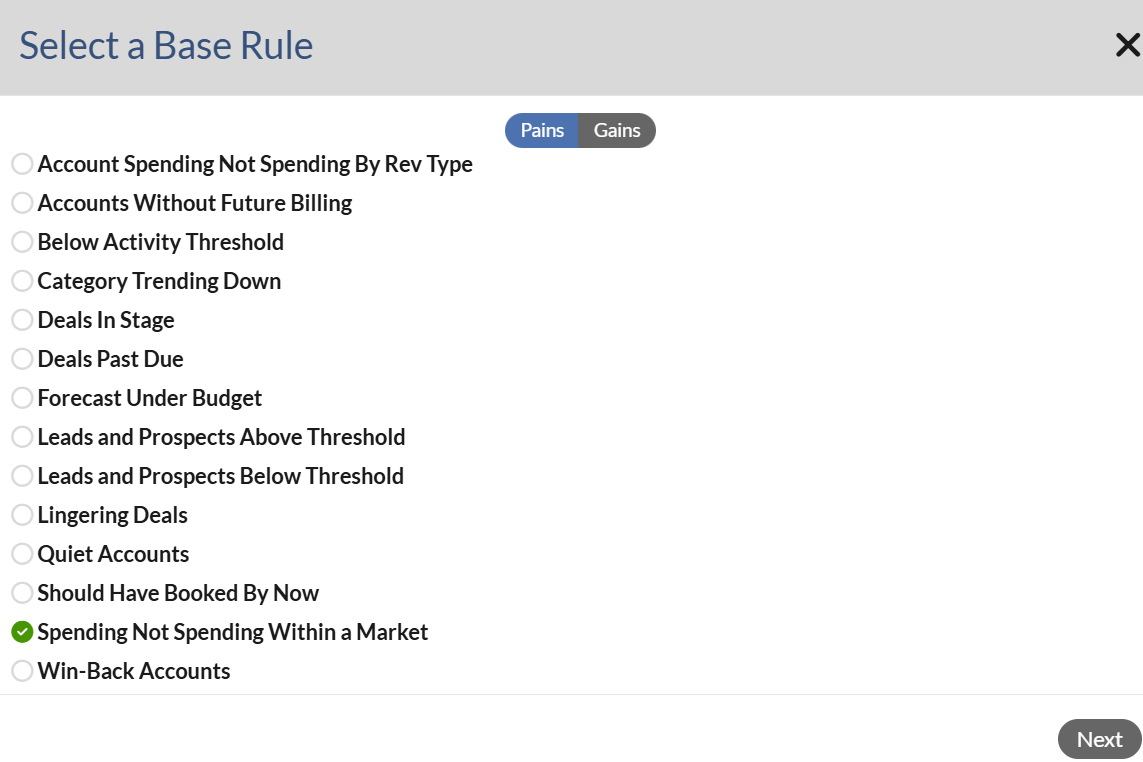
3. Select Spending Not Spending Within a Market and click Next. Note that you will not see the Next button until the Alert is selected.
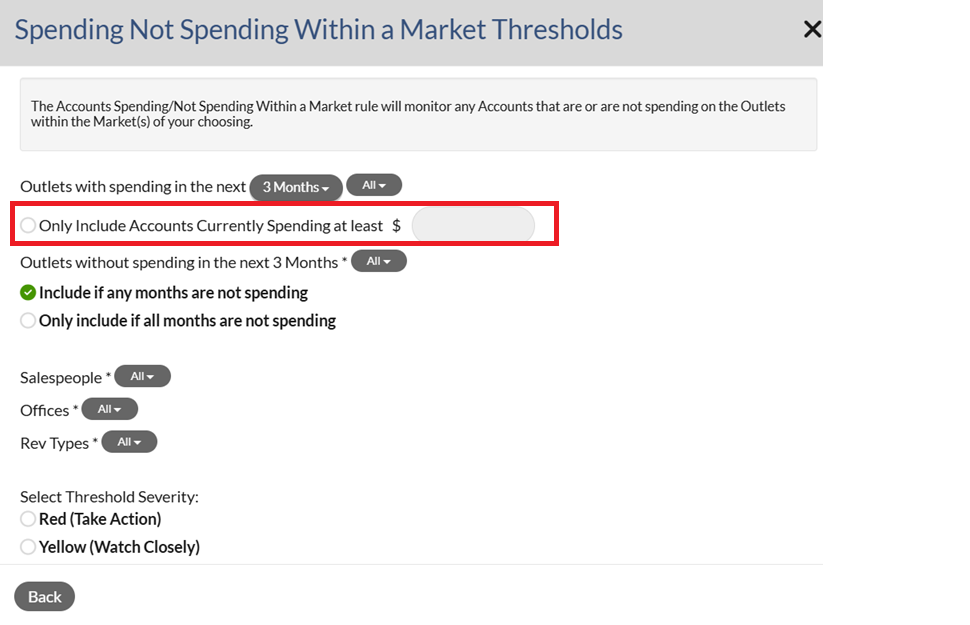
4. Configure each of the options and click Next.
Notes:
- A new parameter exists in configuration that allows you to set a minimum amount (Outlined below). This will help when you only want to see Accounts with $X or more.
- You will not see the Next button until all required fields are filled out.
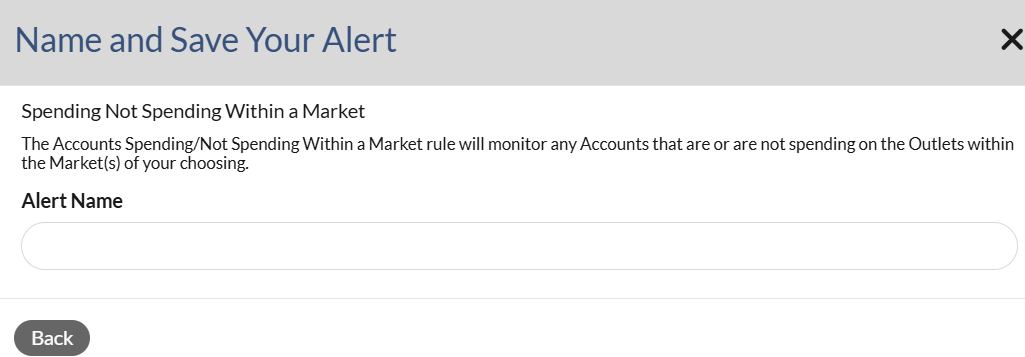
5. Name the Alert then Save. Note that you will not see the Save button until a name is entered.
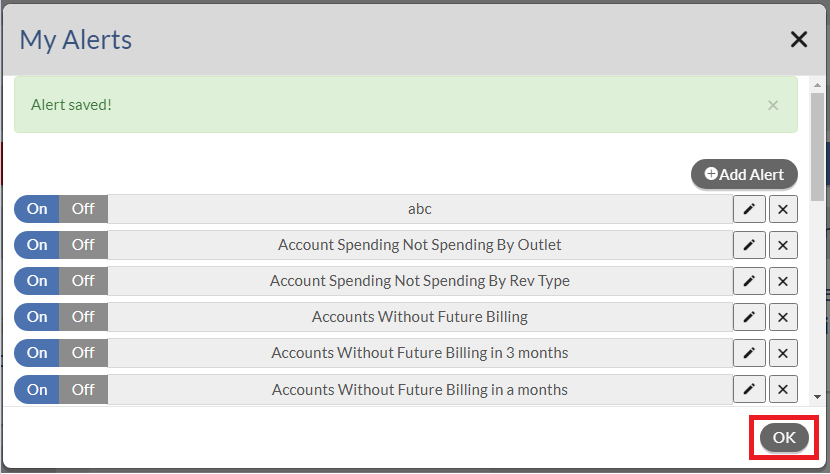
6. Click OK to close My Alerts dialog box.
The results will display Market > Salesperson > Account. The Account level view remains largely unchanged; however, grouping by Market and Salesperson provides a clearer representation of the results configured through the market-specific spending and non-spending filters.
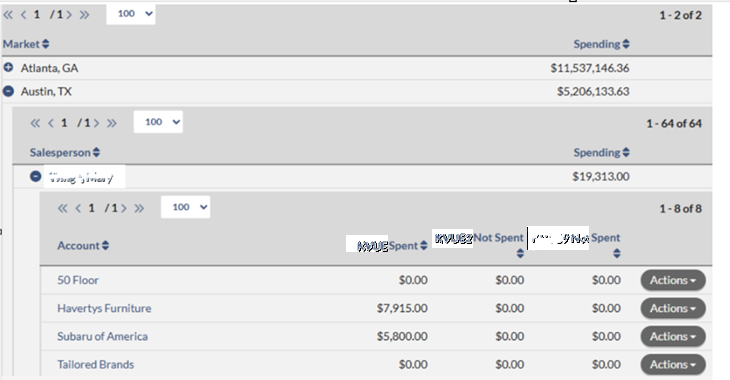
Note: We previously capped to 100 results on the Alert total. We will default display 100 results, but it will now be paged so you can see all of your results.
7. Refresh the page by pressing F5 on your key board. Then you should see the new Alert that you just added on the Alerts Dashboard. Note that if the new alert doesn't show on the Dashboard, this means no data falls into the Alert 's criteria that you have defined.
8. To view the data on the Alert, click the Alert name on the Dashboard.
9. On the Alert's result page, click the Actions button to add a new Deal or Activity or send an email to your Salesperson. Note that Send Email option is only available for managers.
 10. You can export the alert result into the Excel file by clicking on .CSV button on the right top of the screen.
Notes:
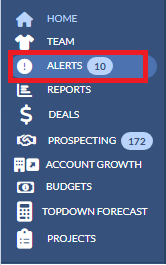
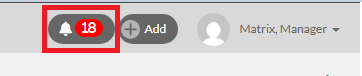
- You may see the number next to either the Alerts on the left Navigation Panel or Bell notifications on the right top of page. This is the number of new Alerts that you haven't viewed. Once all the new Alerts have been viewed, the number should be removed. To view the Alerts, you can either navigate to Alerts on the left navigation pane or Bell notifications and then click on the Alert that you wish to view.
-Alerts on the left menu pane.
Bell notifications on the right top of the page.
- To edit, delete or turn the Alert On/Off , please view this article.
Keyword Search: Alerts, Account Spending Not Spending By Outlet, Account