
To add the New Business into the budget template, please follow the below steps:
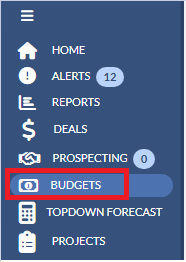
1. Please navigate to Budgets on the left navigation pane.
 2. Click the Year drop down on the upper right hand corner and select the budget year that you would like to access.
3. Click the Budget template name under the BUDGET column. You will be taken directly to the Budget's Entry Screen.

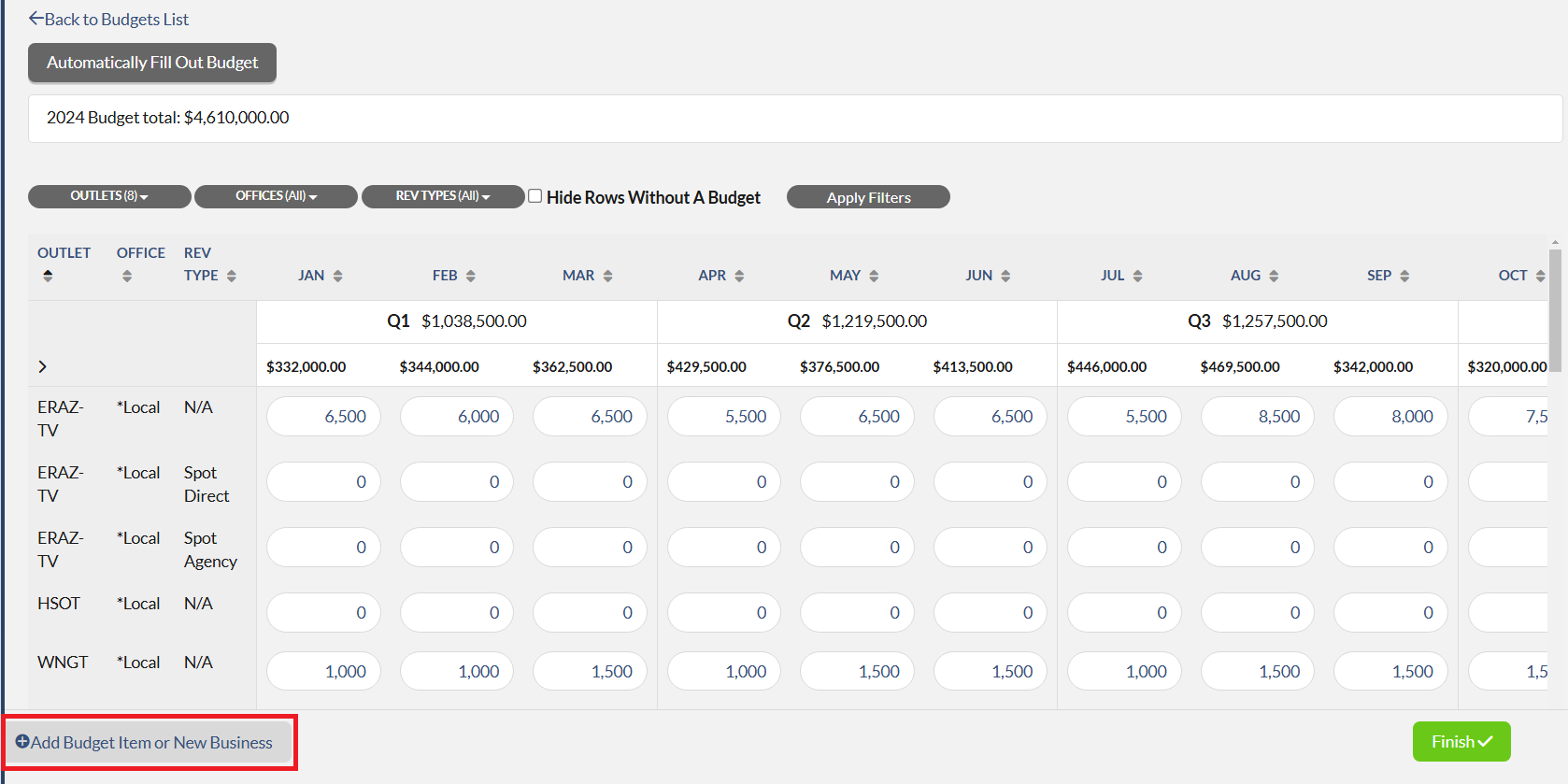
4. Click + Add Budget Item or New Business which is located at the bottom left corner of the page.
6. Fill out all the necessary information. Note: Please leave the field that you wish to enter the New Business empty. For the below screenshot, an Account is left empty so the system will enter *New Business for an account on the budget line.

7. Click Save and Finish or Save and add more items.
Keyword Search: New Business, Budget