
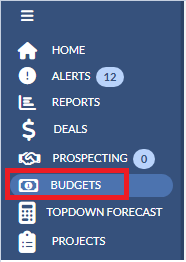
1. Please navigate to Budgets on the left navigation pane.
2. Click the Year drop down on the upper right hand corner and select the budget year that you would like to access.
3. Click the Budget template name under the BUDGET column.

4. After clicking on the Budget template name, you will be taken directly to the Budget's Entry Screen.

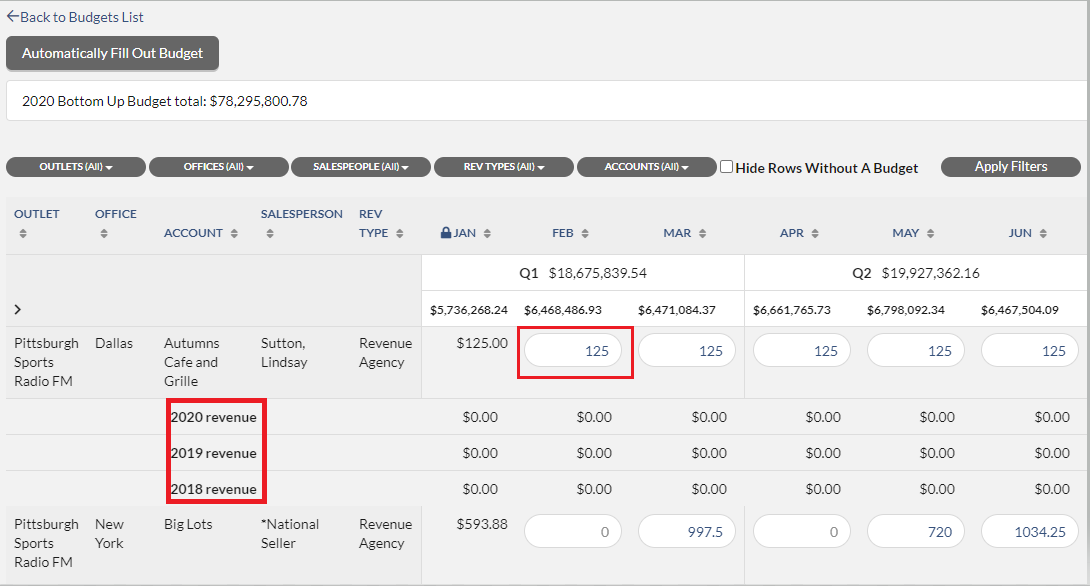
5. click on one of the fields to enter or edit the budget number, Matrix will display the next, current, and last years' booked numbers under the line that you are about to enter the budget number as shown in the below screenshot.
Notes
- There is no Save button. Budget numbers are saved as soon as you press Tab on your keyboard to go to the next field.
- You can use the filters on the top of the page to filter down to specific attributes (Outlets, Offices, Salespeople, Rev Types, and Accounts). You also now have the ability to sort the Budget Rows by a specific attribute, and hide rows without a Budget. After setting any necessary filters, make sure to click the Apply Filters button to apply the filters selected to your Budget Template.You can change these filters at any point while you are entering or editing the Budget.

- You have the ability to Copy or Split values across your Budget lines. To do this scroll all the way over to the right of the template lines. After the line totals, you can click on the menu icon in order to copy or split a value across this budget line.

When selecting Copy, you will be asked to fill out the following options where you can input the amount that you'd like to have copied across all months by checking the All checkbox. The example below shows that a $250 budget will be put on the months of January through December. Click Save to apply your updates. Note: You can uncheck individual months as well and the amount copied will not be copied to the unchecked month.

When selecting Split, you will be asked to fill out the following options where you can input a total budget amount that you would like to have split across the months checked. The example below shows that $1500 will be split evenly between the months of June, July, and August. Click Save to apply your updates.
