
Are you showing N/A as a Revenue Type in your budget template for a Prospect Account? Just follow the below instructions to learn how to update each Account to a Revenue Type that you choose!
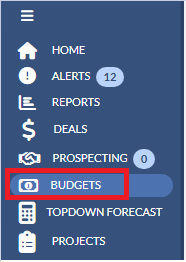
1. Please navigate to Budgets on the left navigation pane.
 2. Click the Year drop down on the upper right hand corner and select the budget year that you would like to access.
3. Click the Budget template name under the BUDGET column. You will be taken directly to the Budget's Entry Screen.

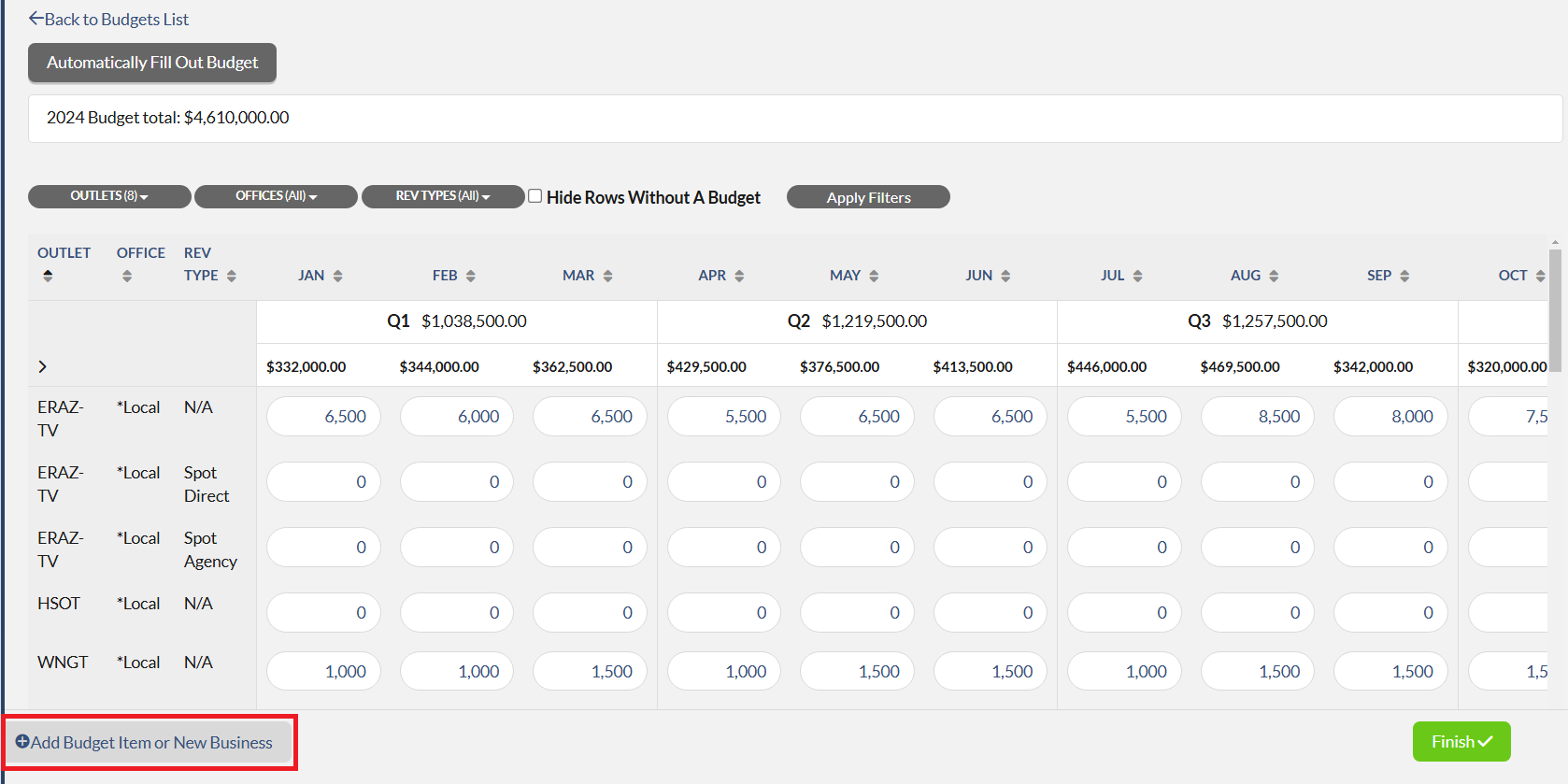
4. Click + Add Budget Item or New Business which is located at the bottom left corner of the page.
6. Fill out all the necessary information. In the Revenue Type field click the drop-down list to make your selection.

4. Once you finished, select Save and finish OR if you are changing multiple line items, select Save and add more items.
Note: Once you have completed all of your changes you will notice that it creates a duplicate line, BUT with the correct Revenue Type.

Keyword Search: Budget, N/A, Rev Type