
This guide is designed to help you understand Clarity and its integration with Outlook and Monarch for email, calendar events, and contacts
Q1: How are my Activities captured in Monarch?
A: The email address set up on your Monarch profile is used as the default email for Clarity activity tracking. To ensure all your activities are captured, you must also add any additional Tegna or Call Letter email addresses you use under the Alternate Email Addresses section.
To add Alternate Email Addresses:
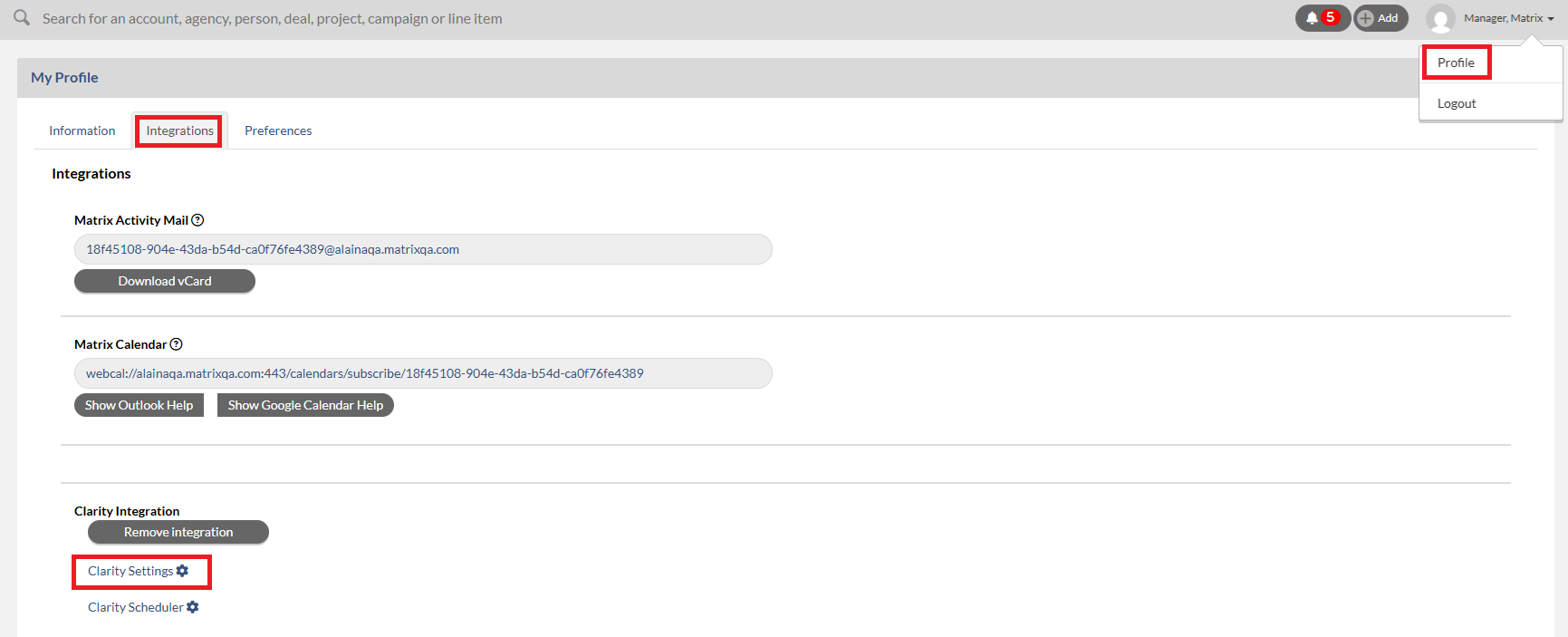
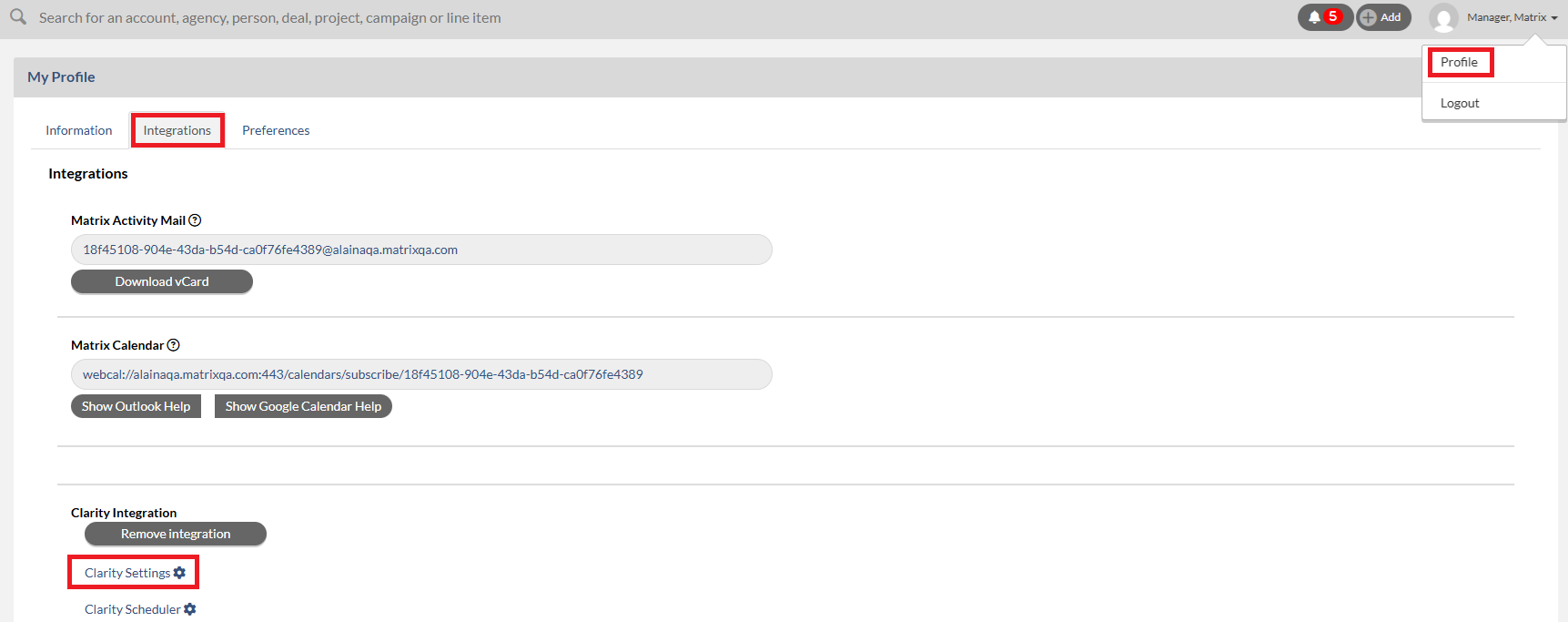
- Click your name at the top right and select Profile.
- Click Integrations tab.
- Click the Clarity Settings (gear icon).
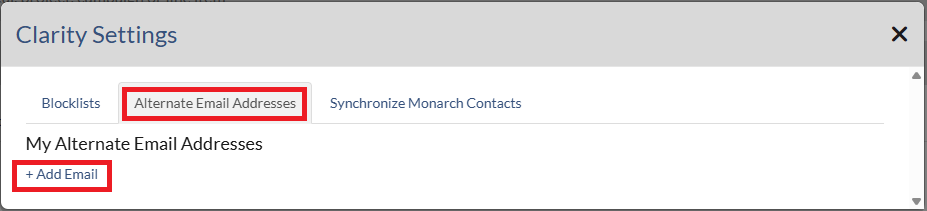
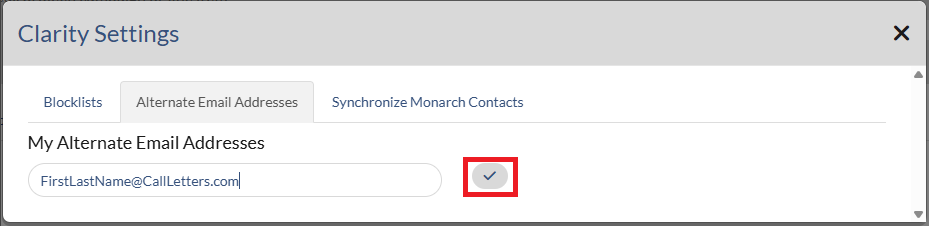
- Select the Alternate Email Addresses tab.
- Click the + Add Email button.
- Enter any additional work email addresses you use.
- Example: FirstLastName@CallLetters.com.
- Click the checkmark icon to save your entries.
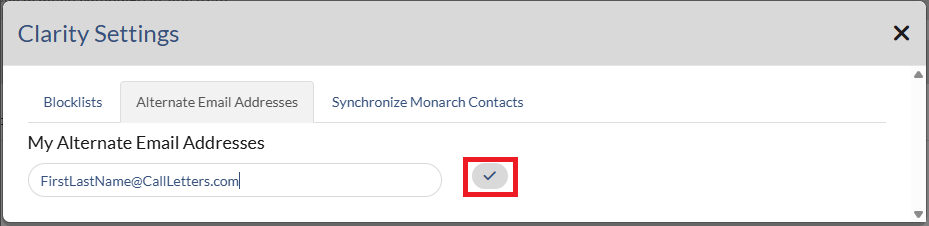
Adding all relevant email addresses ensures that activities from multiple inboxes are properly tracked in Monarch.
----------------------------------------------------------------------------------------------------------------------------------------
Q2: How am I notified about Contacts and Activities created by Clarity?
A: You are notified in two ways:
1. Bell Notifications (alert bell next to the top global search bar), Look for new notifications that look like the example below.
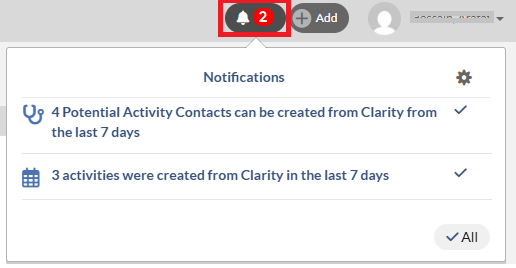
2. Data Cards on your homepage tabs (Not the Corporate View). These cards will display new Contacts and Activities created by Clarity and allow you to take action directly from the Actions section.
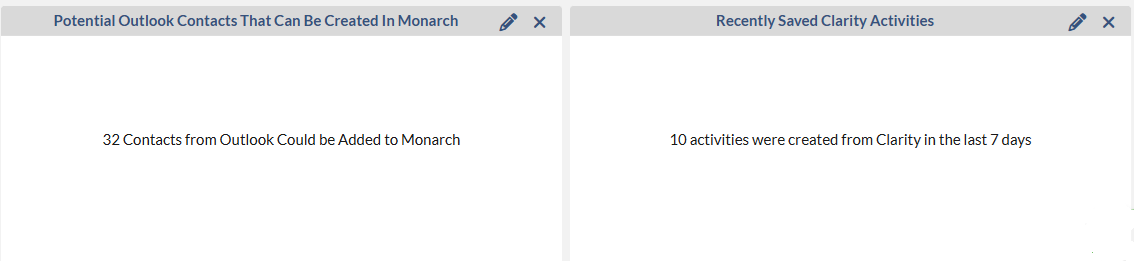 If you don't see the above data card on your home page(Not the Corporate View), please follow the steps below:
- Find an empty Data Card space.
- Click the + to Define Data Card.
- Select Favorite Alert.
- Choose:
- Potential Contacts Recently Created from Clarity Activities OR Potential Contacts that Can Be Created from Clarity Activities.
- Recently Saved Clarity Activities.
----------------------------------------------------------------------------------------------------------------------------------------
Q3: How do I change an activity type for Clarity Activities?
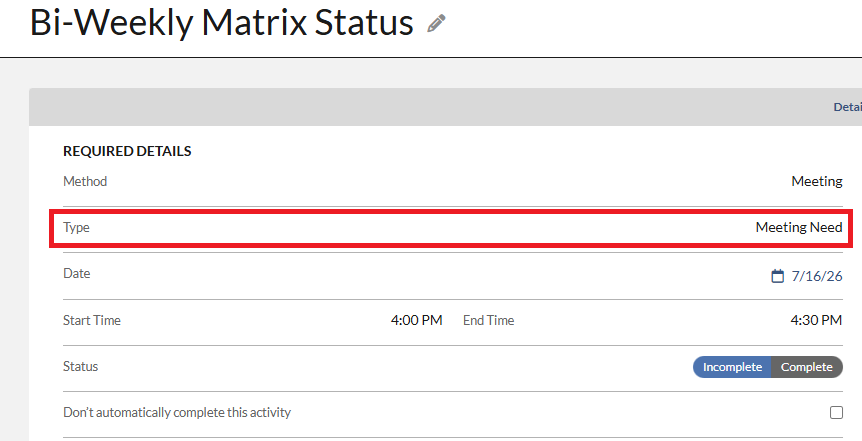
A: You will need to update the Activity Type in Monarch.
• Open the Activity from the Recently Saved Clarity Activities Data Card, Activity List or Sales Productivity.
• Click into the Activity Type field.
• Select the correct type (In Person Meeting, Call, etc.) Note: Activity types can always be manually adjusted in Monarch after syncing.
----------------------------------------------------------------------------------------------------------------------------------------
Q4: Are my contacts automatically created in Monarch?
A: Yes and No.
• Yes: Clarity will sync/import contacts that do not already exist in Monarch.
• No: In order for them to be fully added and usable in Monarch, you must:
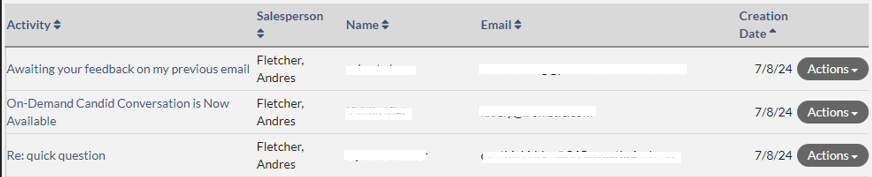
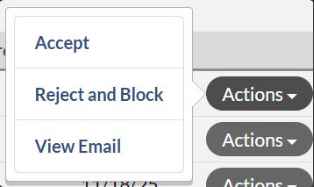
o Accept the contact within the Potential Contacts Recently Created notification and Data Card,
and
o Associate the contact with an Account or Agency.
From the Actions section on Data Card, you can review, accept, and properly associate the contact so it becomes active in Monarch. Note that a Data Card can be accessed from the Home page. Please see Q2 for instructions on how to access the Data Card. .
 ----------------------------------------------------------------------------------------------------------------------------------------------------
Q5: How can I prevent certain emails or calendar events from going into Monarch?
A: You can prevent syncing by:
• Adding the sender’s email address to your Blocked Email List.
• Adding an entire company domain (e.g., @company.com) to your Blocked Domain List.
• Marking meetings as Private in Outlook before they sync.
• Deleting Activities or Block Contact and Delete Activity from the Recently Saved Clarity Activities Data Card under Actions. Please see Q2 for instructions on how to access the Data Card.
Blocked items will no longer sync into Monarch moving forward.
To add the Blocklists:
- Click on your name at the top right and select Profile.
- Click Integrations tab.
- Click Clarity Settings.
- Add domains or emails to My Blocked Domains or My Blocked Emails by clicking the + Add Email button.
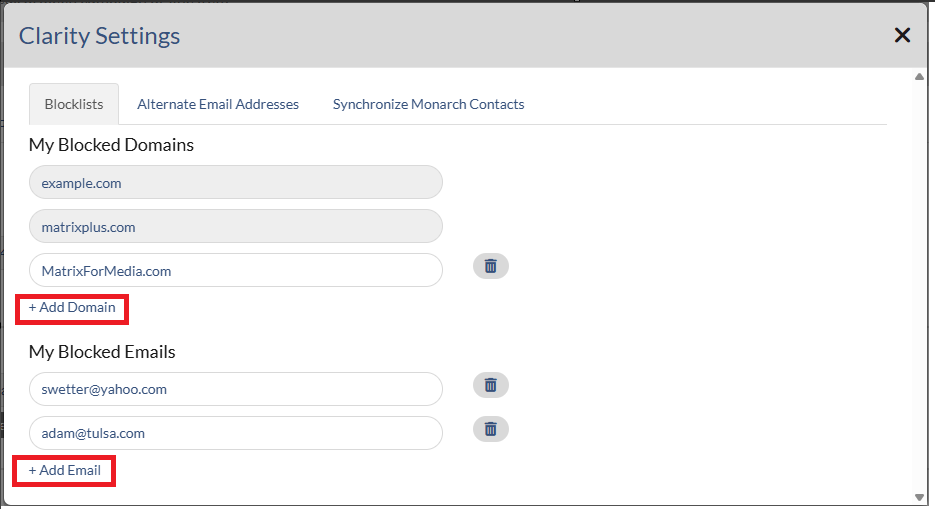
- Enter the email address or domain (e.g., @company.com).
- Click the checkmark icon to save your entries.
----------------------------------------------------------------------------------------------------------------------------------------
Q6: What is Alternative Email?
A: Alternative Email allows Clarity to recognize additional or secondary email addresses that you use such as your call letter email address. This ensures activities are properly captured and associated with your user profile in Monarch.
To add Alternate Email Addresses:
- Click your name at the top right and select Profile.
- Click Integrations tab.
- Click the Clarity Settings (gear icon).
- Select the Alternate Email Addresses tab.
- Click the + Add Email button.
- Enter any additional work email addresses you use.
- Example: FirstLastName@CallLetters.com.
- Click the checkmark icon to save your entries.
----------------------------------------------------------------------------------------------------------------------------------------
Q7: What are My Blocked Domains vs. My Blocked Emails?
A: My Blocked Domains
• Blocks an entire domain.
• Example: @company.com.
• All emails from that company will be excluded from syncing.
• The email domain on your Monarch user profile is automatically added to My Blocked Domains, and is grayed out since you cannot remove it.
My Blocked Emails
• Blocks a specific email address.
• Example: jane.doe@company.com.
• Only that individual email is excluded from syncing.
⚠ Important: Do NOT add your work email addresses to “My Blocked Emails.” You should only add email addresses that you do not want captured in Monarch. If you add your work email address, activities will not be captured because you have blocked your own email from syncing into Monarch.
Use Domain blocking when you want to exclude internal company emails or specific organizations entirely.
Once an email or domain is blocked, nothing from that source will show in Monarch. If you need to remove an email or domain, select the trash can icon to remove it.
Important Note: Once removed from the block list, Monarch will not backfill historical data. It will only capture new emails or calendar events moving forward.
----------------------------------------------------------------------------------------------------------------------------------------
Q8: Why is my alternative email address(es) showing up under My Blocked Emails?
A: Your alternative email address appears under My Blocked Emails because it is intentionally blocked and cannot be removed.
Here’s why:
• Your primary email address is also blocked. However, instead of listing your full primary email under My Blocked Emails, the system automatically blocks your email domain (for example, @abc.com) by adding it to My Blocked Domains.
• Your alternative email address (for example, @callletters.com) is blocked individually under My Blocked Emails.
This setup prevents internal emails from creating activities in Monarch.
For example: If you send an email from your primary address (@abc.com) to your alternative address (@callletters.com), the system would treat that as an internal email. Blocking the alternative email ensures that internal communication does not generate unnecessary activities in Monarch.
This is expected behavior and helps prevent duplicate or internal-only activity capture.
----------------------------------------------------------------------------------------------------------------------------------------
Q9: What if I send a client an email or calendar invite and someone internal is also on it, but the internal person is on my Block List, will that show in Monarch?
A: Yes. The activity will still show in Monarch under your customer/customer contacts as long as your customer contact is not on the block list.
Internal recipients on your block list will not prevent the activity from syncing if an eligible external contact is included.
----------------------------------------------------------------------------------------------------------------------------------------
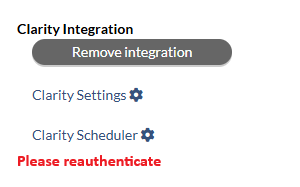
Q10: Why does “Please reauthenticate” message show under My Profile via Integration tab?
A:The “Please reauthenticate” message typically indicates that Microsoft has invalidated the connection for the integration. This happens when you change or reset your password in Outlook. Please click “Please reauthenticate” message to reconnect. When Clarity is not authenticated, the activities will not automatically populated in Monarch. However, future calendar events or activities created from the date of reconnection will be captured in Monarch.
Please see helpful Clarity knowledgebase articles below:
Monarch - Adding or Removing Blocked Emails and Domains in Clarity
Monarch - Using Clarity to Sync Emails or Calendar Events to Monarch as Activities
Monarch - Using Clarity to Sync Monarch Activities to Calendar Events
Monarch - Bell Notifications - Creating Contacts from Clarity Activities
Monarch - Bell Notifications - Recently Saved Clarity Activities