
Background
The Waymark Integration allows you to create AI generated advertisements with just the entry of a URL. These videos are created by Waymark scouring the company’s website and creating spots based on what it finds. You can add some parameters yourself to set values like the length, aspect ratio, vibe, and general instructions and we’ll display these videos in Monarch on the Account Profile pages for you to share or launch back into Waymark to edit. The general idea of this is to help salespeople close business faster by getting buyers to see the vision faster and using less resources downstream to help make that happen.
Getting Started
There is nothing that you need to do within Monarch to set up the integration between Monarch and Waymark. As long as your email that is associated with your account in Monarch is the same email address associated with your account in Waymark then the integration will automatically work.
Generating Videos
This section assumes that you are logged into Monarch and have the same email address in Monarch to automatically authenticate against.
To generate a video, navigate to the Account Profile page for any Account you own and click on the Waymark tab.
If this is your first time using it, there may be a message denoting “No videos have been created for this account.”
To create your first video, click on the Create a Video button in the top right corner to launch the Create a Video dialog.
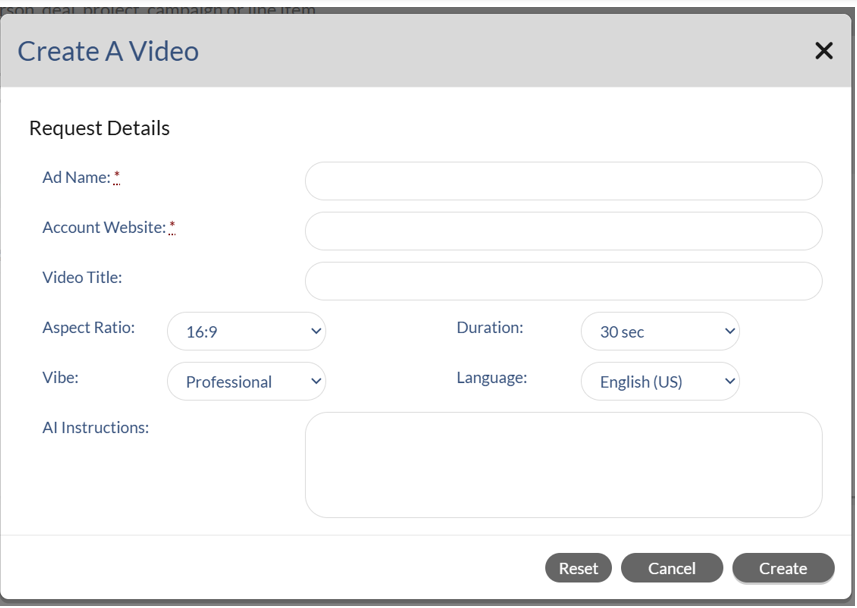
The following fields are now available for you to send to Waymark to customize the video experience:
Ad Name – This is the name of the video that will be referenced within Monarch. This is a required field.
Account Website – This is the website for the company you want to create a video for. It is important that this is accurate and is the main page of the business so that Waymark may scour the entire site for content. This is a required field. This field will be automatically filled in for you if you already have a website saved on the Account.
Video Title – This is the name of the video that will be referenced within Waymark.
Aspect Ratio – This is how you want the video to display. 16:9 is default, but 4:5 is also available.
Duration – This is how long you want the video run length to be. 30 seconds is the default, but 5 and 15 seconds are also available.
Vibe – This is how you want the video to feel. Professional is the default, but Fun, Neutral, Laid-Back, and Inspiring are also options.
Language – This is the spoken and written language for your video. English is default, but there are a number of other options that Waymark supports including Spanish.
Once you click Create the request will be sent to Waymark, a new row will be created on the Waymark tab and it will have a status of Submitted. Videos may take up to 30 minutes to create depending on the number of requests that Waymark has received.
We have added a Refresh View button to the page which will allow you to update the status. For example if you click it shortly after submitting your request you will see the Status change to Processing.
Reviewing Videos
This section assumes that you are logged into Monarch and have the same email address in Monarch to automatically authenticate against.
Previously created videos can be seen directly within Monarch and you will have a few additional options for interacting with them as well.
To view a previously created video, navigate to the Account Profile page and click on the Waymark tab. You should see rows for each previously created videos now.

Click on the Name of the one that you wish to view and a new dialog will appear with the embedded video allowing you to watch the ad, Edit the video (with a link back to Waymark), or Share the video with others even if they do not have access to Waymark.
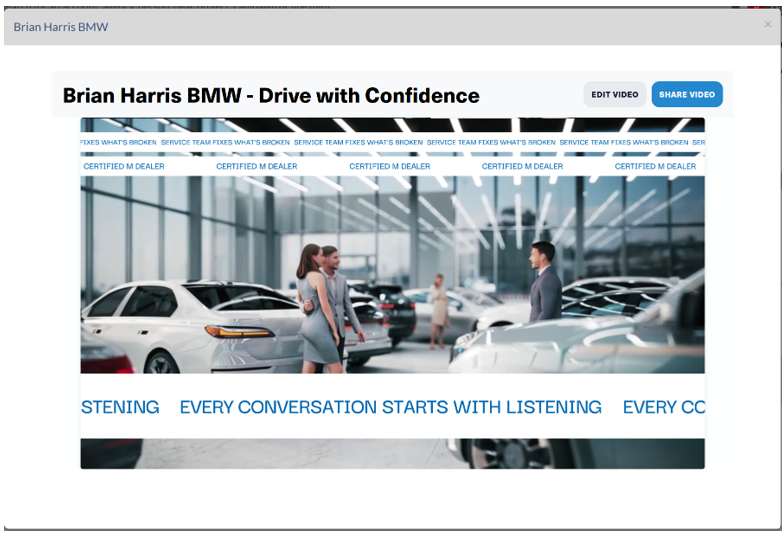
When you’re done, close the view with the X in the upper right corner of the dialog.
Other options that can be done on the Waymark Videos can be accessed from the menu at the end of each video row.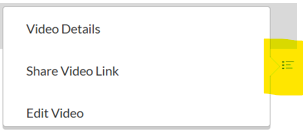
Video Details – Displays a read only view of the parameters that were used to create the video
Share Video Link – Creates a preview link from Waymark that you can share with others. Clicking on the link generated will automatically copy it to your clipboard to paste elsewhere
Edit Video – Launches you into Waymark in a new tab where you can make edits to the video and further you work toward creating finalize content for the buyer. You can NOT edit a video directly within Monarch.
When Your Email in Monarch Does Not Match the Email in Waymark
You can still use parts of the Waymark integration even if you are not an authenticated user in Waymark. However, the experience is limited to a read only view within Monarch. You will be able to experience any of the shared views of any videos for Accounts you have access to. You cannot perform any type of video creation or edits while not authenticated.
To authenticate with Waymark, please have your administrator create your Account in Waymark using the same email address that you are using in Monarch.
Reassigning Accounts and Waymark
When an Account gets wholly reassigned to you or from you, and a Waymark Video has been previously created, the new owner will receive those videos. The previous owner will no longer have access to those videos within Monarch.
If an Account gets partially reassigned to you or from you, and a Waymark video has been previously created, the new owner will only receive a read only view of the videos created. The previous owner, who still owns the account, maintains ownership of the video and will continue to have edit access to it. Videos in Waymark only have one owner, but can be shared with anybody and this helps to keep the workflow as useful as possible for all parties involved.
Misc Information
-- As of the writing of this document, Waymark has noted that there is no limit on the number of videos that can be created. Waymark has included creation in their cost that your organization has or will negotiate. The cost comes when the videos are finalized and used.
--A manager does not need to explicitly have an Account in Waymark to create videos as long as the salesperson they are impersonating has access to Waymark. Managers cannot create Waymark videos on the ALL impersonation view. Managers that own accounts will need to have access to Salesperson to create videos for themselves.