
As a Sales Manager, you need to easily be able to see the Accounts assigned to your team and manage those lists through easy visibility and reassignment functions. The Account List in Monarch is how you handle all of that and more!
Reassigning Accounts
Reassigning Accounts is even simpler with Monarch!. Please follow the step by step instructions listed below:
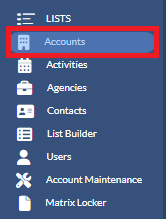
1. Click on Accounts from the left navigation pane.
2. Type the account name in the Search box to locate the Account you want to reassign.

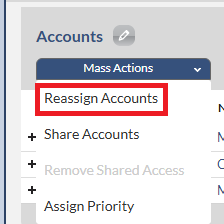
3. Add a check mark next to it (on the left) and click on the Mass Actions button.

4. Select Reassign Accounts. Then the Reassign Accounts dialog box will display.
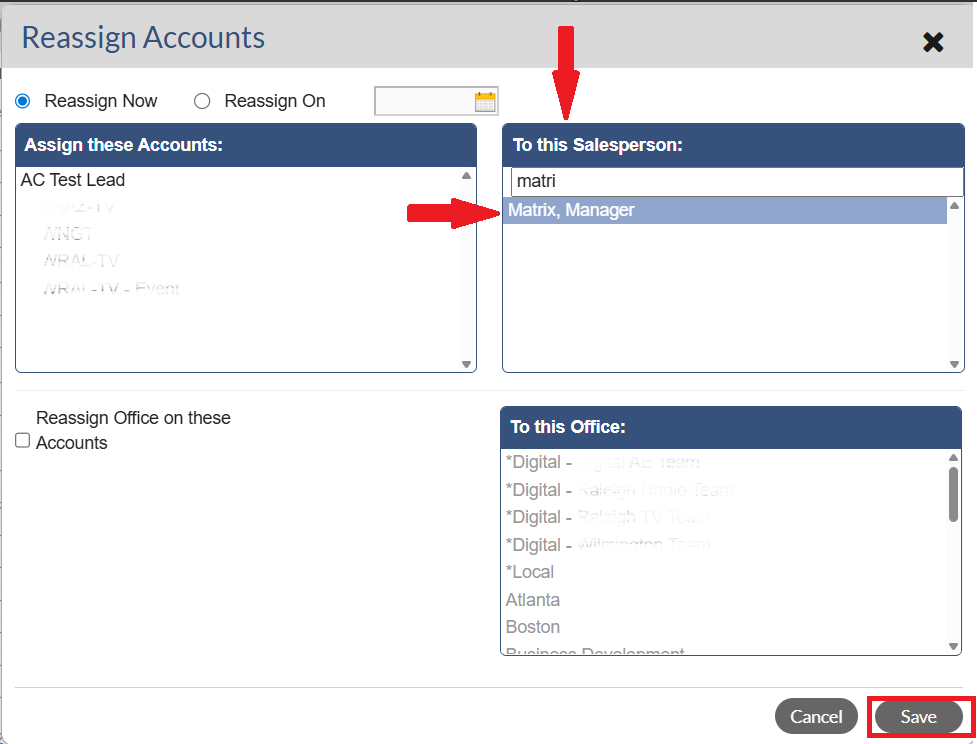
5. Under To This Salesperson's box, in the search box, type in the new salesperson's name who should take over the Account. Click on the salesperson's name (make sure his/her name highlights as shown in the picture below). Then click the Save button.
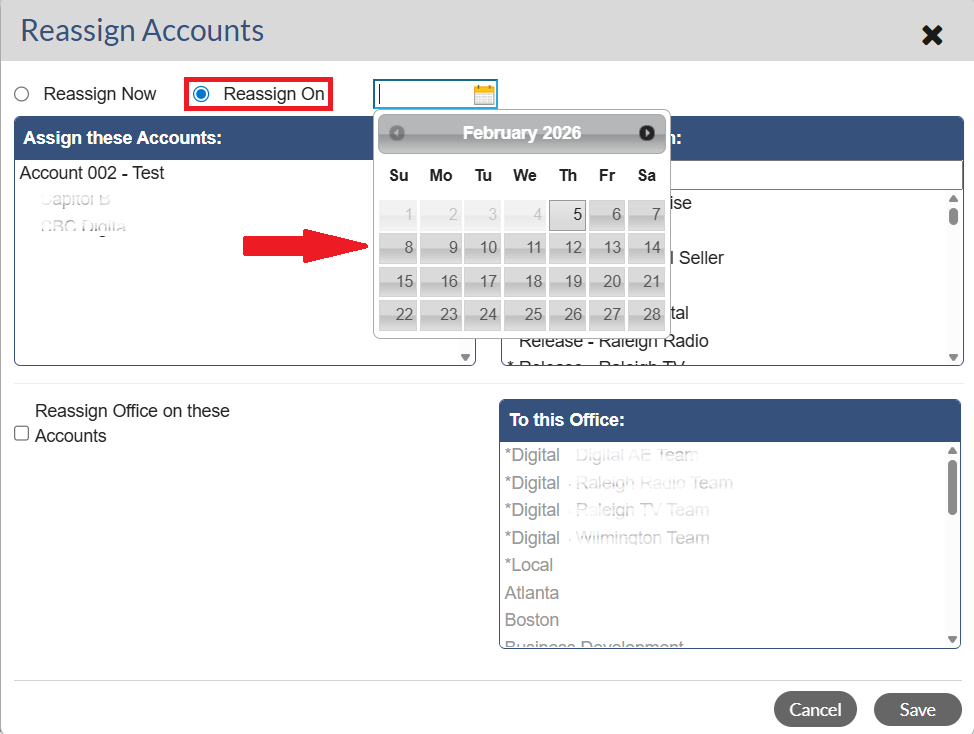
Note: If you want to reassign the Accounts on a specific date, choose to Reassign on, add the date when you would like the reassignment to take place before choosing the Salesperson's name and clicking Save.
8. The system will bring you back to your Account list displaying a notification that there are Reassignments Pending.
Note - These include the number of Reassignments for your entire company. Your Accounts will be reassigned in the order they were added. Once the reassignment has been completed, the account will display the new salesperson 's name as the owner of the Account.

Visibility & Exporting Accounts
You have the ability to see an account’s associated Salesperson, Priority, Type, Last Billed Date, Outlet, Office, Agency, Last Billed and Creation Date of the account if the information is available.
To see the Outlet, Office and Agency data, click the + sign preceding the account name to view the sub-grid level.
To do a Partial Reassignment, select some of the Outlets after expanding to the sub-grid level, then reassign.
Notes:
- When Partial Reassigning (sub-grid level), the Incomplete and Complete Activities, stay on the current AE no matter what Outlet(s) are reassigned.
- If the entire Account is reassigned then all (Complete and Incomplete) Activities are reassigned to the new AE.

Sorting - As you review the Account List, keep in mind that you can sort the results by any of the available columns (Pro-tip: sort by the Last Billed column to see accounts that haven't, or have, bought with you recently).

Filtering - When you need to narrow down your view to a specific segment of accounts click the  icon next to Accounts to access the filter options:

Select the primary attributes on the left of the pop-up to then uncheck the individual items on the right that you'd like to exclude from your view. The most common use is to filter by Salesperson while you're working on a single individual's list.
Exporting - To download your list to Excel, select the Export icon  in the upper right-hand corner of the page. In Excel, you are able to print the list and do other functions native to that application.

Note: An inactive salesperson will appear with a strike through their name.