
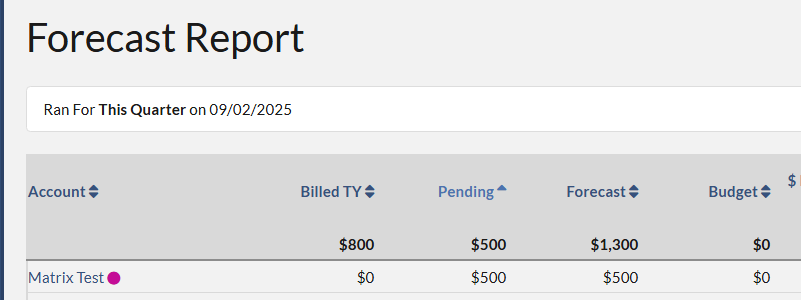
After a manager shared the account to a salesperson who doesn't own the account, the shared account will appear on the shared salesperson's end with the purple dot next to the account. To view the shared account profile, please navigate to the three places below.
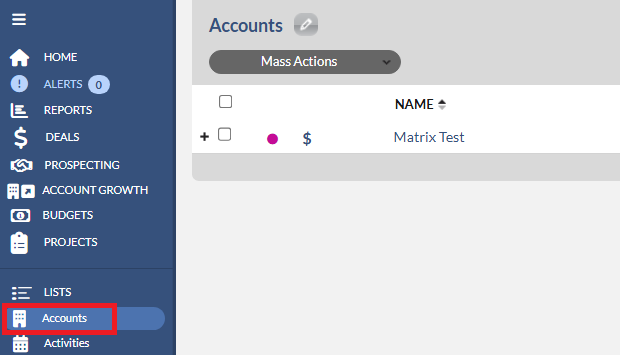
1. Accounts List - You can view the shared account by navigating to the Accounts under LISTS.
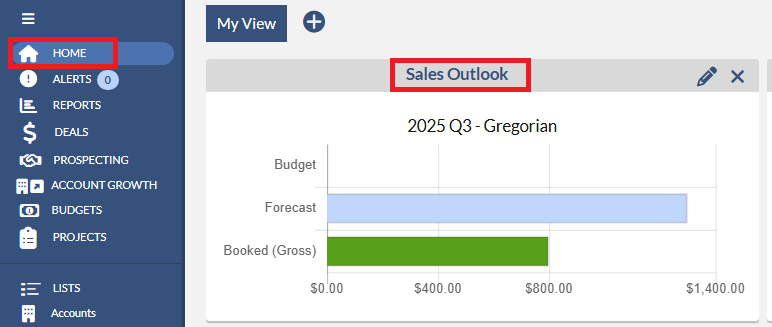
2. Sales Outlook - You can view the shared account by navigating to Home, and clicking the Sales Outlook data card.
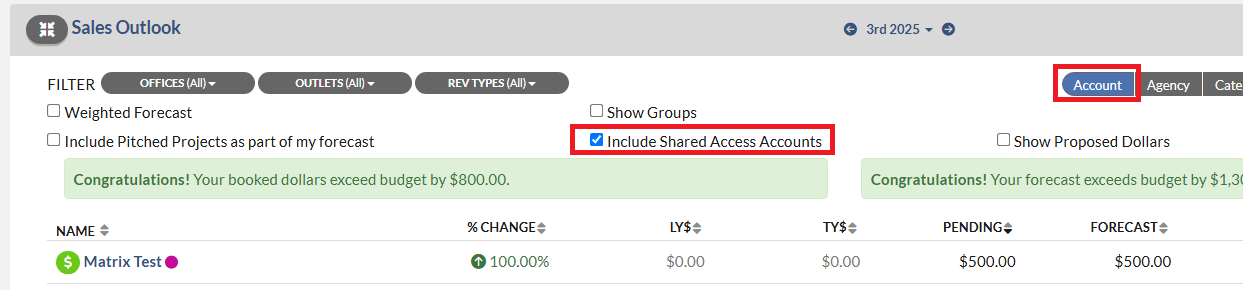
On the Sales Outlook data card, click on the Account tab, and then check the Include Shared Access Accounts checkbox. Please make sure you select the time frame that the shared account has some billing or pending amount.
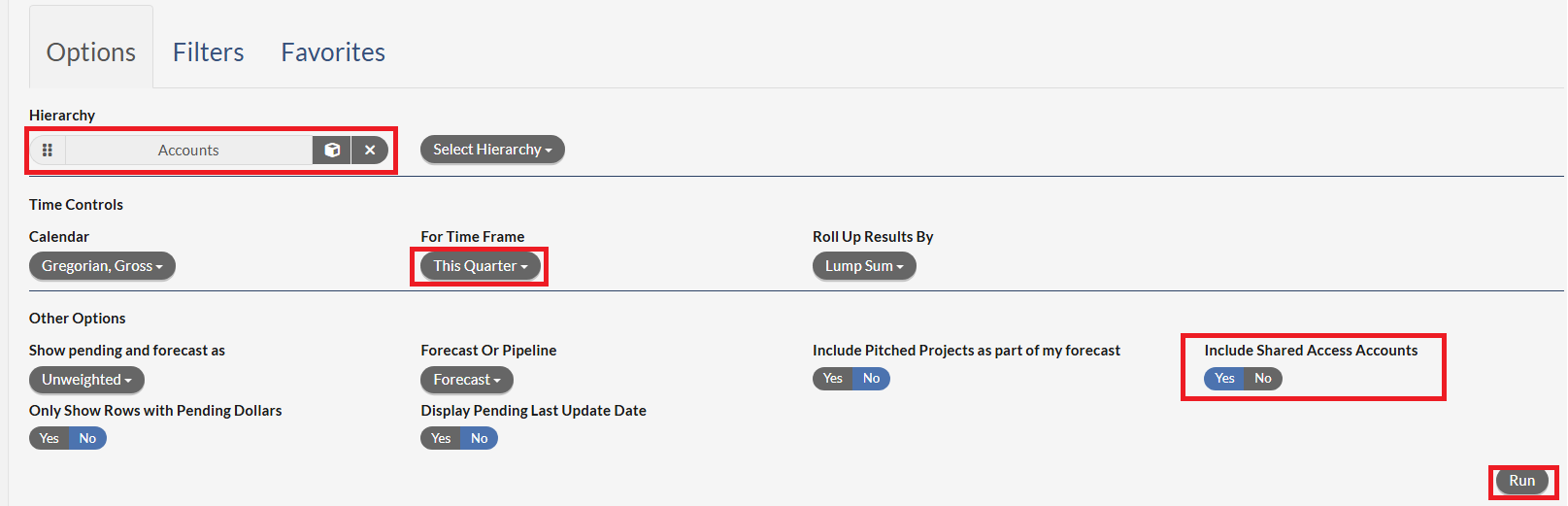
3. Forecast Report - You can view the shared account by navigating to Reports, and clicking on the Forecast & Deals tab
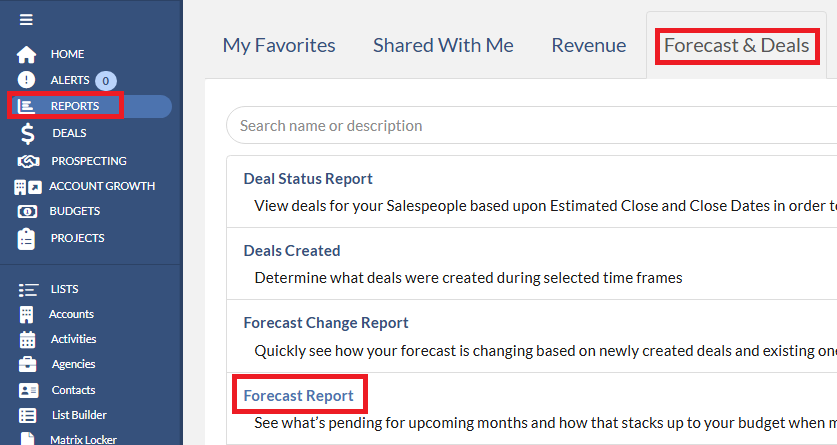
On the report, set Accounts as the hierarchy, select the time frame that the shared account has some billing or pending amount, set Include Shared Access Accounts to Yes, and click Run to generate the report.
Shared Salesperson's Access on the Shared Account.
On the shared account, the shared salesperson doesn't have the full access to the account as the account owner does. However, the shared salesperson can or cannot do the following.
1. Deal
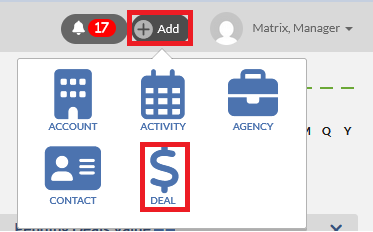
- The shared salesperson can add a new Deal to the shared account. The new Deal added by the shared salesperson is automatically assigned to the account owner name. To add a deal while you are on the shared account, please click the (+) Add button and select Deal.
- The shared salesperson can access or edit any Deals on the shared account. To access a deal on the shared account, click the Deals tab and then click the Deal name to access the Deal profile.

2. File

- The shared salesperson can upload a file to the shared account.
- If All is selected on the Viewing Account For when uploading the file,
- The new file uploaded by the shared salesperson is automatically assigned to the shared salesperson name.
- The file will also appear in the shared salesperson 's Matrix Locker.
- The shared salesperson can view the uploaded file on the shared account only when All is selected on the Viewing Account For.
- The account owner will have NO access to the uploaded file because it is assigned to the shared salesperson name.
- The shared salesperson can also delete the uploaded file that is assigned to the shared salesperson name.
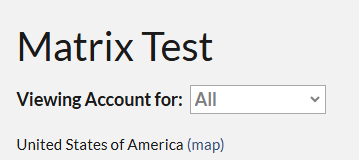
- If the account owner name is selected on the Viewing Account For when uploading the file,
- The new file uploaded by the shared salesperson is automatically assigned to the account owner name.
- The file will NOT appear in the shared salesperson 's Matrix Locker.
- The shared salesperson can always view the uploaded file on the shared account whether All or the account owner name is selected on the Viewing Account For.
- The account owner will have access to the file because it is assigned to the account owner name.
- The shared salesperson CANNOT delete the uploaded file that is assigned to the account owner name .
- The shared salesperson can view or download any files on the shared account.
3. Activity
- The shared salesperson can add a new Activity to the shared account. The new activity added by the shared salesperson is automatically assigned to the shared salesperson name. To add an activity while you are on the shared account, please click the (+) Add button and select Activity.
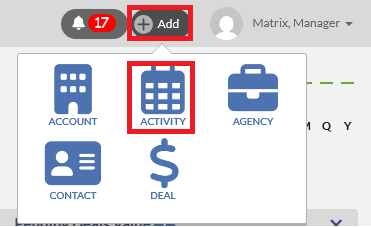
- The shared salesperson can view or edit the added activities by navigating to the Activities tab and then clicking on the Activity Subject to access the Activity profile.

The added activity also shows on the Activity list page. To access the Activity list page, please click Activities under LISTS.
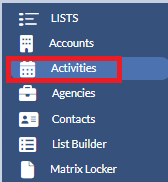
- The shared salesperson has NO access to activities added by the account owner .
- The account owner has NO access to activities added by the shared salesperson.
4. Contact
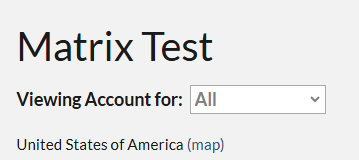
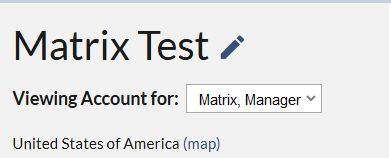
- The shared salesperson can add a new Contact to the shared account. The new Contact added by the shared salesperson is automatically assigned to the shared salesperson name. To add a Contact while you are on the shared account, please select All for Viewing Account for. Then click the (+) Add button and select Contact.
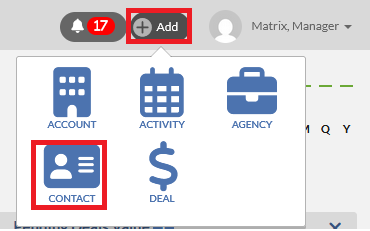
- The shared salesperson can view Contacts by clicking on the Contacts tab.

- If All is selected on the Viewing Account For, Contacts added by the shared salesperson or account owner will show.
- If the account owner name is selected on the Viewing Account For, only Contacts added by the account owner will show.
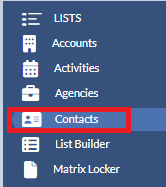
- The shared salesperson can also view the added Contacts on the Contact list page. To access the Contact list page, click Contacts under LISTS .
- The shared salesperson CANNOT access or edit the Contacts added by the account owner.
- The account owner CANNOT access or edit the Contacts added by the shared salesperson.
5. Request outlet
A shared salesperson CANNOT request an outlet on the shared account.
6. Tag
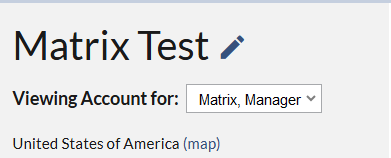
A shared salesperson can add tags on the shared account by navigating to the Tags tab. Please make sure that the account owner's name is selected in the Viewing Account for: field before you add a tag.

7. Revenue
A shared salesperson can view the revenue on the shared account by navigating to the Revenue tab.

8. Account 's address
A shared salesperson CANNOT update the address of the shared account.