To find out which Accounts do not have Contacts associated with them, please follow the steps below:
1. Download the template of AccountsWithNoContacts.xlsx located at the bottom of the page to your local computer.
2. Get the Account list. To do this, please follow the steps below:
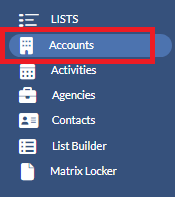
- Navigate to Accounts under LISTS.
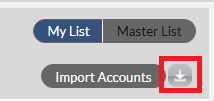
- Click the Export button at the top right. This will export all the accounts into an Excel file named AccountsList.csv.
- Copy only the first column (NAME) from the AccountsList.csv and paste it into the first sheet (AccountList) of the AccountsWithNoContacts.xlsx template that you just downloaded in step#1.
3. Get the Contact list. To do this, please follow the steps below:
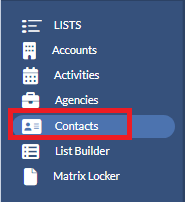
- Navigate to Contacts under LISTS.
- At the top right of the page, click Account and then CSV. This will export all the account contacts into an Excel file named ContactList.csv.

- Copy all the data from the ContactList.csv and paste it into the second sheet (ContactList) of the AccountsWithNoContacts.xlsx template that you just downloaded in step#1
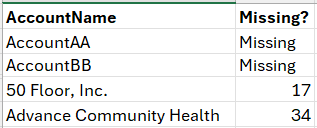
4. In the AccountsWithNoContacts.xlsx template, click the third sheet (Missing). On the this sheet, all account names are listed in the first column. If an account doesn't have a contact, the word "Missing" will appear in the "Missing?" column. If the account has a contact, the row number of the contact from the second sheet (ContactList) will be shown.
For example, per the screenshots below:
"AccountAA" and "AccountBB" have no contacts because they show "Missing" in the "Missing?" column
"50 Floor, Inc." has a contact and their contact is on the row#17 of the second sheet(Contact List) in the template.
"Advance Community Health" has a contact and their contact is on the row#34 of the second sheet(Contact List) in the template.