
The enhanced Salesperson Profile Page includes key information about the individual salesperson. This is a great place to get more information on a salesperson's book of business and additional information.
To access the Salesperson Profile page, please follow the below steps:
1. Navigate to Home page.
2. Click Sales Outlook data card to expand it.
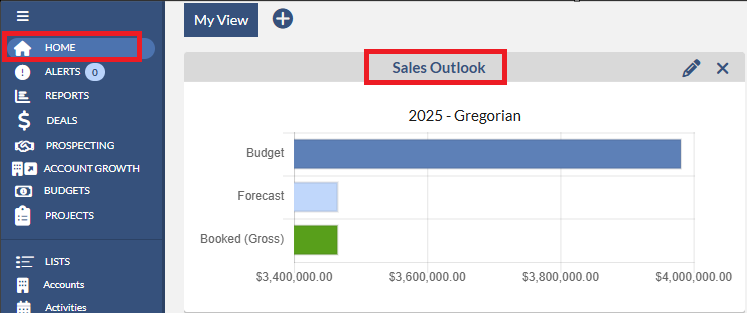
3. Click Salespeople tab.

4. Click on one of the Salespeople names.
Salesperson Profile Page
The Salesperson profile page enables you to see the revenue by Account, Category, Office, Outlet, or Rev type. Also, you can use the toggle buttons to view the data by month, quarter, or year. By default, the current month’s data is displayed. You can view past and future data by using the Month/Quarter/Year toggles in conjunction with the green arrows in order to modify the time frame.
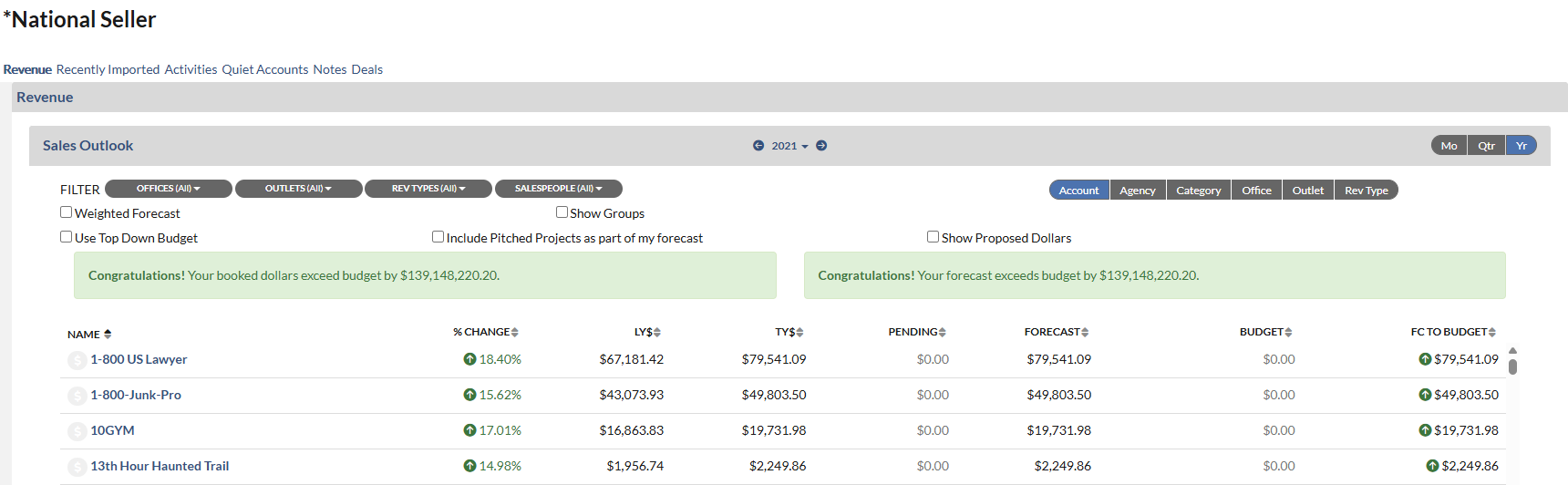
- Change the Sort Order in the Grid - if necessary, you can re-sort the data using the headers and clicking on little arrows next to the column names. The column that is sorted gets highlighted in yellow.
- Weighted Forecast checkbox - This will change existing PENDING & FORECAST columns as follows, as well as, the weighted Pending and Forecast dollar amount controlled by the Weighted Slider option on the Deal Header.
- Shows Groups checkbox - Will show the Parent group name based on the display toggle selected. In the example below – The salesperson toggle is selected.
- Use Top Down Budget checkbox - allows Top Down Budget to show on the report.
- Include Pitched Projects as part of my forecast checkbox - will add Projects column on the report to show the pitched dollars from any projects.
- Show Proposed Dollars checkbox - will add Proposed and Pipeline columns to the report. Note that the Pipeline is calculation of Booked TY + Proposed + Pending.
Recently Imported
This Recently Imported Page displays the accounts that have been affected by the most recent import. Any accounts that experience a change in dollars from an import, for the selected time period, will display. By default, the list displays a day's worth of information. However, you can display up to an entire month's worth of records by using the provided calendar options. The list will display the account's name, the deal name, the change in dollars between the most recent import and the selected date(Imported), and the remaining pending amount(if there is one). If a deal is not associated with an account, a N/A will appear in the account's deal and status fields. An account will appear multiple times if it contains more than one deal in the same time frame, and is affected by an import.
Checking the Only Show Accounts when Matrix adjusted pending displays accounts that have been auto reconciled in Matrix. You can review this list to ensure accuracy and to keep up with changes that have happened to your accounts

Activities
This Activities Page displays Activities that have been created. By default, the view will display This Week's Incomplete Activities: however, you can use the toggle buttons to update your view to Last Week or Next Week. Completed Activities can be viewed by switching to the Complete toggle as well.
The Incomplete/Complete Activities in the selected time frame. Note: you can add a new Activity by clicking on Add an Activity button on the right top of the pod.

Quiet Accounts
The Quiet Accounts Page displays the list of accounts that had activities created in the past, but has not within the last 90 days, nor have they set any future activities.

Notes
This Notes Page displays the notes. This is a great place to keep useful reminders or additional information.

Deals
This Deals Page displays all the open and closed Deals.

Keyword Search: Quiet Accounts, Notes, Activities, Revenue Pod, Recently Imported, Sales Outlook.