
As an Account Executive, you will have access to enter either Prospect or Lead accounts.
- Lead is an account type that you must submit to a Manager for approval. Your manager can approve or reject your account. Once your manager approves the account, it becomes a Prospect which you can add a Deal. However, if your manager rejects the account, it will remain as Lead which you cannot add a Deal.
- Prospect is an account type that you don't need to submit to a Manager for approval. A deal can be added after the Prospect is created.
To add a Lead or Prospect account, please follow the below steps:
1. Click the (+) Add button in the upper-right-hand corner of your screen and select Account.
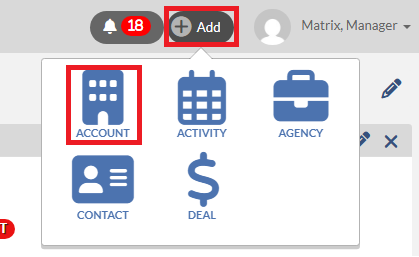
2. You will then see a new pop-up window showing you the type of account(Lead or Prospect) that you are entering.
- If you see "Add a Lead", this means that you only have access to add Lead accounts and your manager will need to approve the account before it becomes a Prospect.
- If you see "Add a Prospect", this means that you have access to add Prospect accounts and you can add a deal after the account is created without a manager approval.
NOTE - To add the Contact and/or Activity in the same window, check the box(es) that are highlighted below.
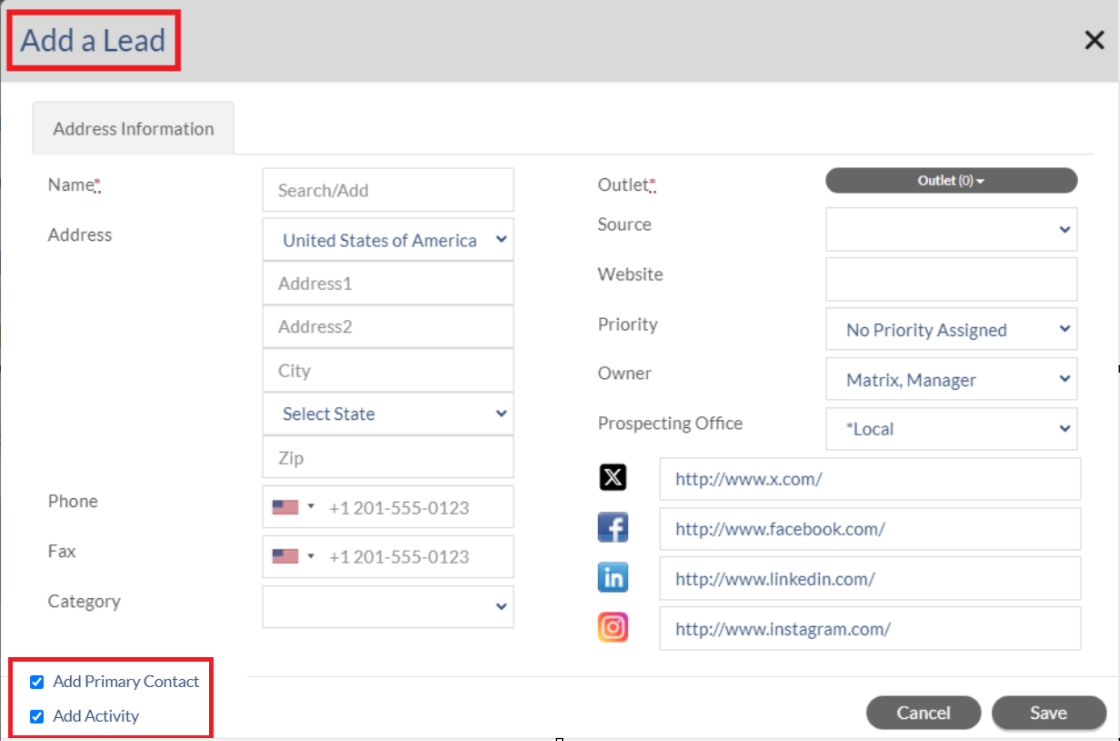
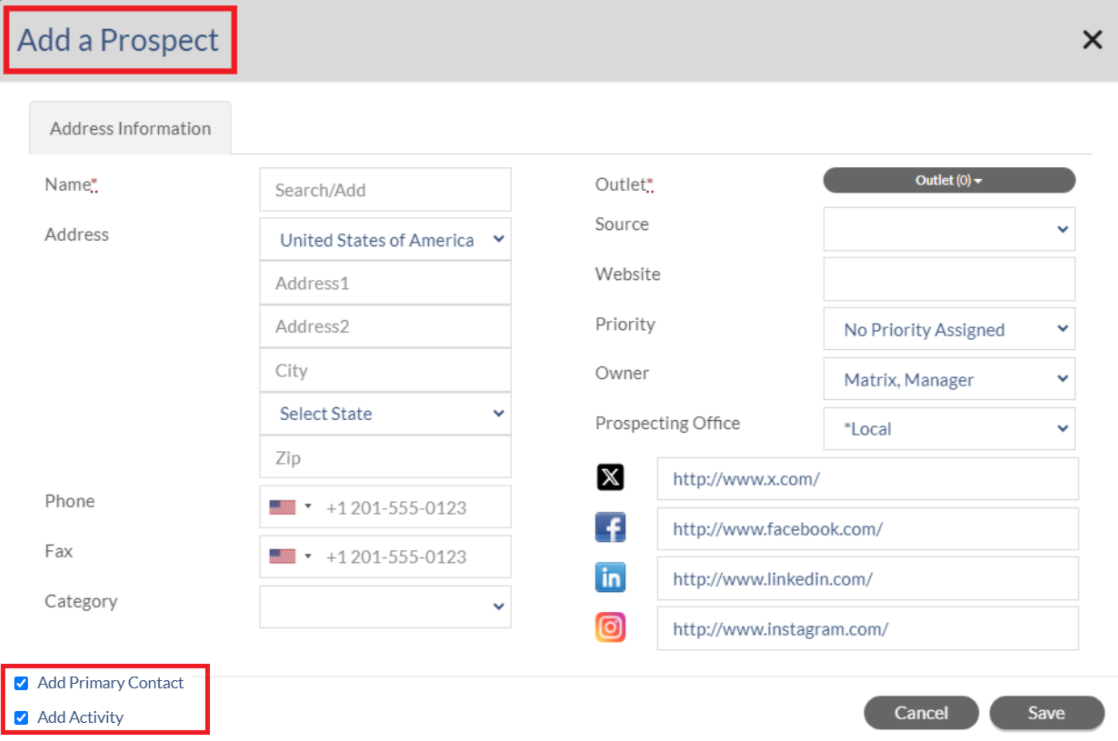
On the Add a Lead or Prospect window:
- You must fill out the Name and Outlet fields.
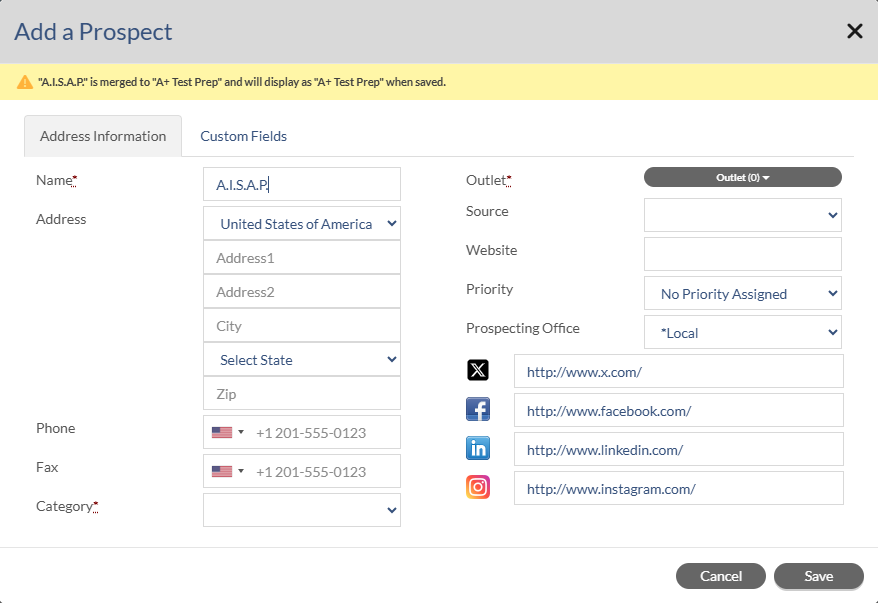
- For the Name, this is the name of the Lead or Prospect Account you 'd like to add (not the name of the contact). Note: If the added Lead or Prospect is already merged into another account, you will see a message similar to the screenshot below. The account will be saved under the name of the account it has merged into.
- For the Outlets, the list is populated based on what you are authorized to see in your account. You may select one or more applicable outlets.
- The Prospecting Office should be auto filled as "Local", but it can be changed by clicking on the Prospecting Office drop down.
- Other fields are available but not required. However, when adding a Lead, you must fill out the Address information such as Country, Address1, City State and Zip as these are required when you submit a Lead to your manager.
3. Once you have finished filling out the information click the Save button. It will save the record as a new Lead or Prospect account. After clicking the Save button, the new Lead or Prospect profile will appear.
- On the Prospect profile, you can add deals as needed. Please review the article below on how to add a deal Monarch - Adding Deals / Pending
- On the Lead profile, you need to enter more information (Contact and Activity) before you can submit it to your manager. Please review the article below on how to submit a Lead to a manager for approval. Monarch - Multi-Stage - Submitting Lead Accounts - Account Executive