
To save your time of entering the pending amount, you can simply copy the budget amount to the pending amount by clicking on the Update Pending From Budget button on the Deal profile. This is can be done for ONE Account at a time.
 For this function to work properly, the requirements below must be met:
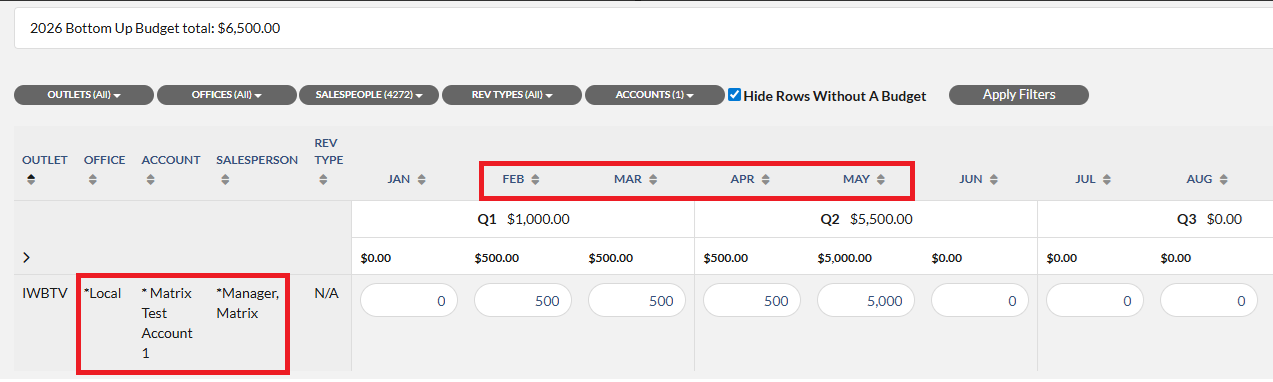
- The Account, Salesperson, Office names and months on the Deal and Budget line must be the same. Both Budget line and Deal profile in the below screen shots have the same Account, Salesperson, Office names and month.
Budget Line
Deal Profile
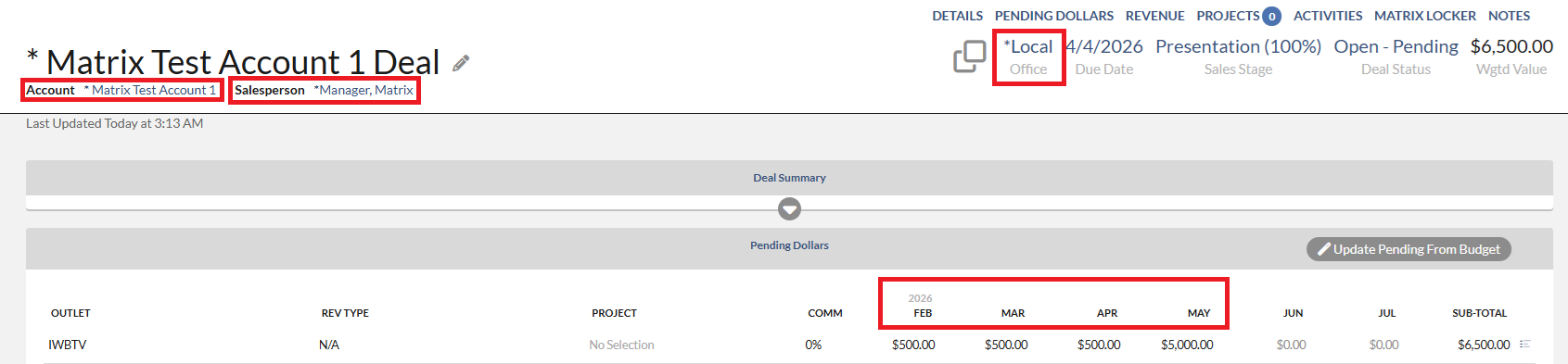
- If Category and/or Agency are present on the Budget line, the Deal Profile must have the same Category and/or Agency.
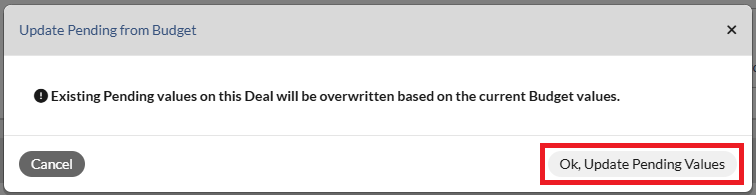
Please keep in mind that after clicking the Update Pending From Budget, the existing deal detail row with Outlet, Rev type and Pending amount will be removed and replaced with the Outlet, Rev type and amount from the Budget line. This action CANNOT be undone. You will lose the existing Outlet, Rev type and Pending amount. You might want to save this information somewhere before clicking the Update Pending From Budget button.
To update the Pending amount from the Budget line, please follow the steps below:
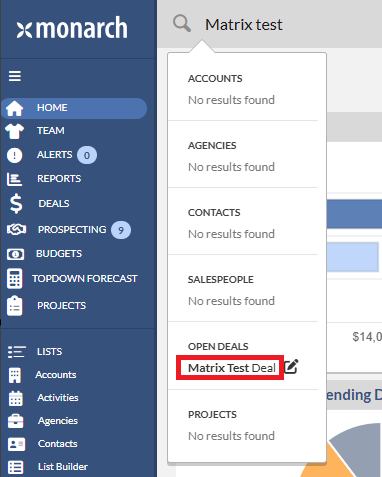
1. Navigate to the Deal profile by typing the Deal name in the global search, then click the Deal Name from the pop-up list. The Deal profile will be displayed.
2. On the Deal profile, click the Update Pending From Budget button in the Pending Dollars section.

3. Click the Ok, Update Pending Values button to confirm. The budget amount should show on the Deal profile.
4. If the message of No Budget values exist for this Account for this time frame appears on the top right of the page, this means the requirements above are not met.

You may want to check the budget line on the budget template to see if it has the same information as the Deal profile. To do this, please follow the steps below:
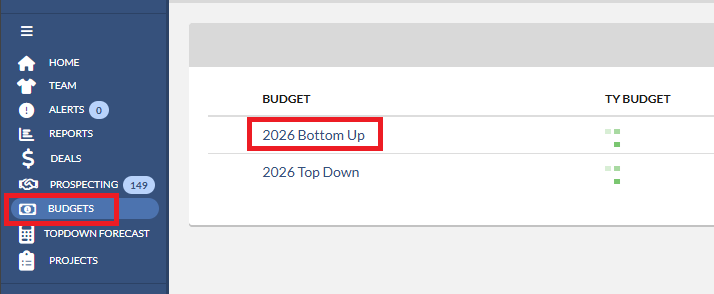
1. Navigate to the budget template by clicking on the Budgets in the left navigation pane, then click the Budget template name
2. Click on the Accounts filter, type in the Account name, select the Account name from the pop-up list, and click the Apply Filters button.
