
Deals have been updated to provide an easy, streamlined way for salespeople to pitch Projects already created by managers while working through their monthly, quarterly, or yearly buys. This allows salespeople to enter project information at the same time they enter deal information from a single location, without having to go to two different places in the system.
To add a Project into the existing Deal, please follow the below steps:
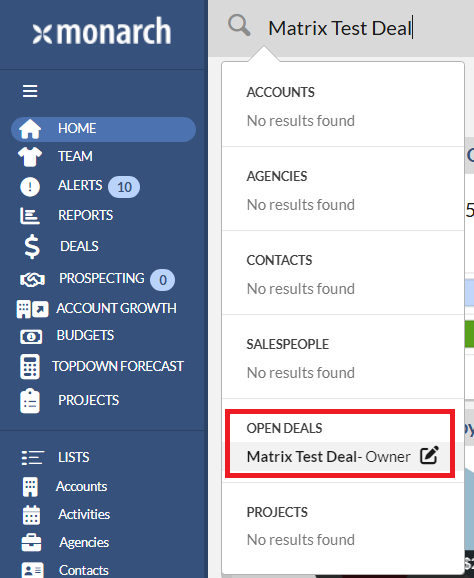
1. Navigate to a Deal Profile by typing in the Deal name on the global search and then click the Deal name under OPEN DEALS section. The Deal profile will display. Note that if you haven't created a deal, please click here to view the instruction of how to add a deal.
 2. On the Deal profile, on the Pending Dollars section, click No Selection under the PROJECT column and select on of the project names that shows on the dropdown list.

Notes:
- Projects will only appear in the dropdown if:
- Project and Deal profile at least 1 month overlapping timeframe. For example, the NFL 2021 project has run date from Jan 01, 2025 to March 30, 2025. This project will not appear for a deal that has time frame from April 2025 to June 2025 because there is no overlapping month.
- The salesperson on the deal is allowed to sell it based upon the Offices, Outlets and Revenue Types in the Project. This means a seller in Atlanta will not be able to add a project that is specific to Austin. Another example if the Rev Type is Digital and the deal is TV, then the Project will not appear in the drop choices.
- If your company is using the Unit Codes for Projects, The Project names on the drop down will contains the Unit Code in conjunction with the Project name. For example, to indicate the Project of NFL 2021 with a unit code of Half-Time Show your dropdown selection may look like “NFL 2021 (Half-Time Show)”.
- If a project names that you selected from dropdown doesn't have access to the Outlet on the Deal detail row, you will be receive the below message. You may reach out to your manager to add the Outlet on Deal into a Project.

- Setecting a Project may update the Office, Outlet, and Rev Type fields on the deal. For example, the project NFL 2021 is only for WAAA and the Core Revenue Type. If you have selected any other Outlet or Revenue Type, upon selecting NFL 2021 as your project they will be updated to the first valid Outlet (WAAA in this case) and the first valid Revenue Type (Core in this case) so that reporting on projects is as accurate as possible.
- The Outlet and Revenue Type will also adhere to the Outlet and Revenue Type relationships that an Admin may have previously setup to help ensure proper combinations are created on pitched project dollars just as they are on pending deal values.
- Selecting a Project will disable entering dollars for any months that are not set up for the project. For example, if my deal is for Q4 and an affiliated project is only for October, then when that project is added to our example deal, I will only be able to add Project dollars for October.
- After selecting a Project, you should see the Pitched icon as shown in the screen shot below. This means a project has been successfully added into a deal and all the pending amount will show as pitched amount on the Projects module. You are free to edit your project pitches via deals or within Projects. It is a LOT easier to do this via the Deal with this new workflow, but the 2 locations will match up as both screens share data and will always be in sync.
- This also means that every project pitched dollar has a corresponding deal even if that deal only contains project dollars.

- Reporting remains unchanged, regardless of whether project pitches were entered from a Deal or in Projects.
- Reconciliation also remains unchanged. Dollars will continue to reconcile against Projects as they have in the past.
To Update status to Pitch/Sold/Declined
Depending on your Admin configuration, a pitched project on a deal will either be controlled via the Deal Status or via the individual project controls per row. This is set on the /admin/settings page in the Display Projects Pitched Status pod.
- If you see the icons of Pitched, Sold, and Declined next to the Project field after a project is selected, then you may update the status of the Pitch to Sold or Declined on the each deal detail

- If you see only the icon of Pitched next to the project field after a project is selected, then the project is controlled by the Deal Status located on the top of the Deal Profile. The entire deal is either Won or Lost as a whole.

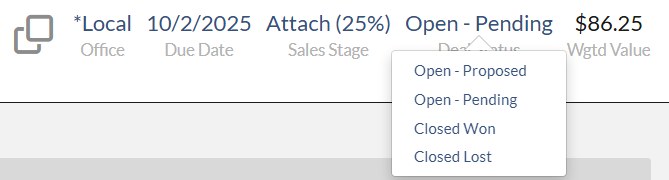
The Deal Staus is located on the right top of the Deal Profile.
- If the Deal status is set to Open-Pending, the Picted icon shows for all the deal detail rows.
- If the Deal status is set to Closed WON, the Sold icon shows for all the deal detail rows.
- If the Deal status is set to Closed Lost, the Declined icon shows for all the deal detail rows.
To view Pitched dollar
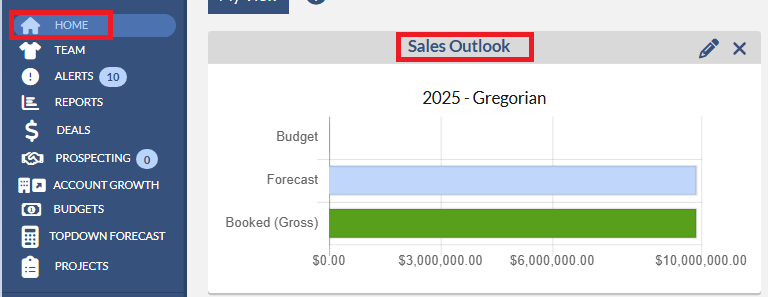
1. Sales Outlook - to view the pitched dollar, navigate to Home, click Sales Outlook data card, check Include Pitched Projects as part of my forecast checkbox. The Pitched dollar will display under the PROJECTS column.

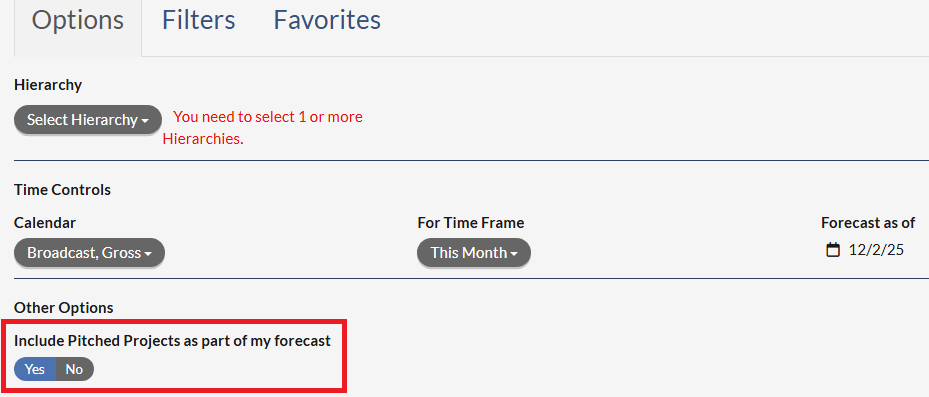
2. Forecast report or Forecast Change report - please click below for instruction of how to pull the reports. Please make sure you set YES to Include Pitched Projects as part of my forecast on the report's Options. The Pitched dollar will show under Projects column and Booked + Pending + Pitched Projects = Forecast.
Monarch - Forecast Report Overview
Monarch - Forecast Change Report Overview
3. Market Projects Report - please click here for the instruction of how to pull the report.