
To add a Deal to your Agency, please follow these steps.
1. Select +Add, then Deal.

2. Click Agency.
3. Type in the Agency name in the search field and select the Agency from the pop-up list.
4. Select Save. You will be taken to the Deal Profile page.

6. On the Details section under ADDITIONAL DETAILS, click No Section on the Account field.
 Note that if you don't see the Account field on the Details section, you may need to click white triangle under the word "Details" to expand the Details section to see the Account field.
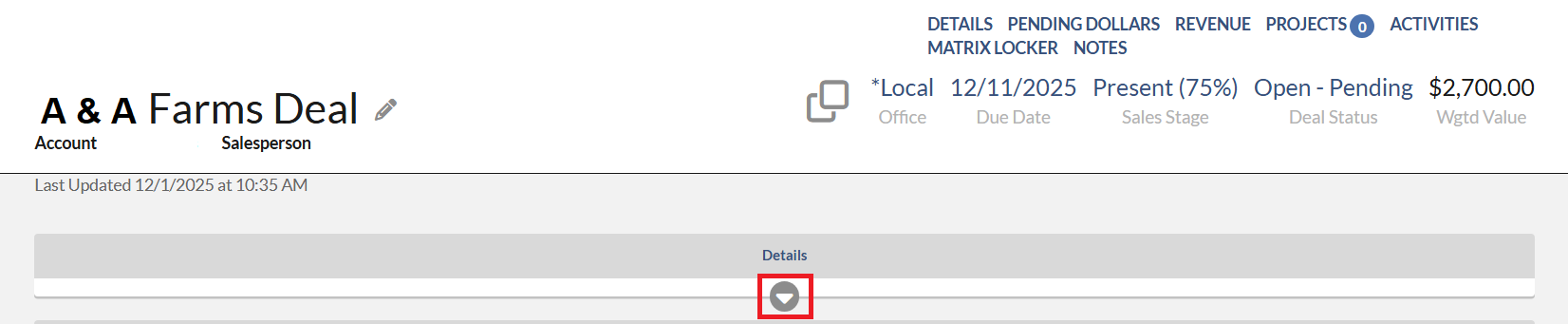 7. Once you click No Section on the Account field, the pop-up list shows. Only the Accounts that have Billed on the Agency are on the list.
However, if you would like to associate to a Prospect (an Account that has no billing), click +Add unrelated Accounts.
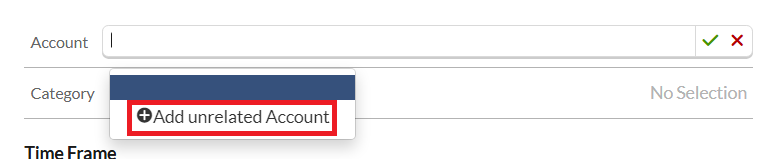
Then type in the Account name in the search field and click one of the names from the pop-up list. Then click Save button.
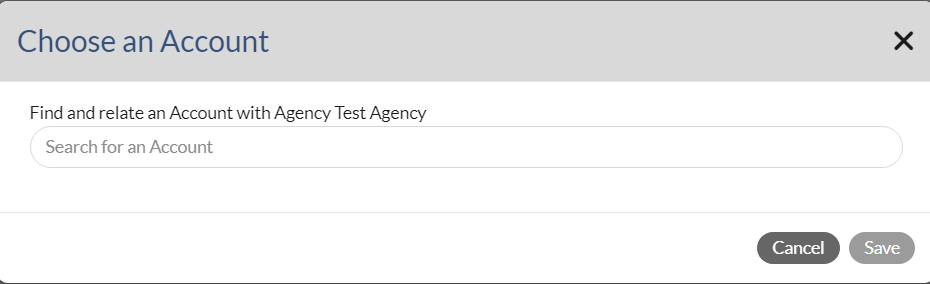
Note: If you associate an Account to your Agency Deal, the Pending dollars will display under the Agency and/or Account when reporting.
For quickly set up a deal profile, we highly suggest following the below steps:
1. Select month, year and duration that you would like to add the pending amount

2. Click (+) Add Row to add a deal detail row.
 3. Click into the Outlet field to select the outlet. Also, click into the Rev type field to select the Rev type. Then add the pending numbers.
Notes:
- If you don't want to set up a Deal Profile every time you add a deal, we suggest setting up Deal Preferences.
- If you would like to add deals into multiple accounts, we suggest a Quick Deal functionality on the Sales Outlook. Please view this article for the instruction: Monarch - Quick Deal - How to Add or Edit
- To learn more about Deal Profile, please view this article: Monarch - Deal Profile Overview