When The First Sales Stage is Enforced for Contacts
If the admin configures the Contacts part of the feature to be enforced at the first Sales Stage, then every new deal created will be reviewed before being created to ensure the Account or Agency on the deal also has at least one contact. That contact must also have a First Name, Last Name, Title, Email, and Primary phone number as it will be automatically affiliated to the deal. If there is no contact or the contact found does not have enough information then you will be met with an error message letting you know about the contact.
In this example, both the Account/Agency and Contact requirements have been enabled to create a new deal

You can find this experience when adding a Deal, or adding a Quick Deal. Please note that it only takes one contact to satisfy this requirement so not every contact must have all the information in order for a deal to be created. However, only those contacts that do have a First Name, Last Name, Title, Email, and Primary Phone will be automatically associated with the deal upon creation.
To correct the error message, follow the steps below:
1. Click on the Account name in the error message. This will bring up the Account profile.
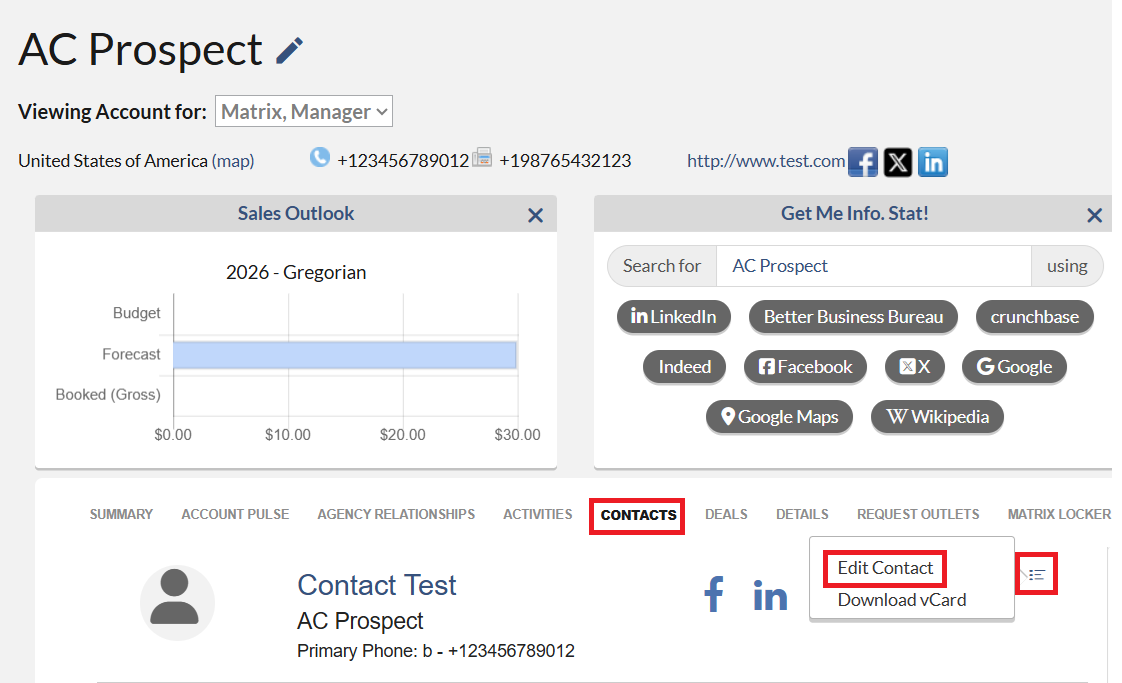
2. On the Account Profile, click the Contacts tab to see if there is any contact. If so, click on the menu icon and select Edit Contact.
3. Fill out all the required information and click the Save button.
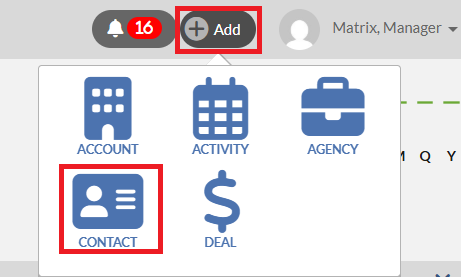
If no contact is shown on the Contacts tab, please click the (+)Add button at the top, select Contact, fill out the required information and click the Save button.
When a Later Sales Stage is Enforced for Contacts
If the admin has enforced Contacts in a stage beyond Sales Stage 1, then in order to place a deal into this stage there must not only be contacts on the deal, but at least one of those contacts must have a First Name, Last Name, Title, Email, and Primary Phone filled in. Failure to meet this requirement will result in an error message displaying on the page where you are attempting to change the Sales Stage (ex: Deal Profile, Deals Landing Page, Quick Deal)
Even if contacts are not required for a deal to be created, Monarch will add any Contacts to your deal automatically upon deal creation as long as the contact has a First Name, Last Name, Title, Email, and Primary Phone in an effort to help streamline the process for the seller when they do eventually enter an enforced Sales Stage.
Multiple Contacts and new Contacts Pod on a Deal Profile
Deals have been updated to allow for more than one contact to be affiliated to them at a time. To see all the Contacts on the Deal profile, please follow the below steps:
1. Type in the Deal name on the global search and click the Deal name on the OPEN Deals section on the pop-up list.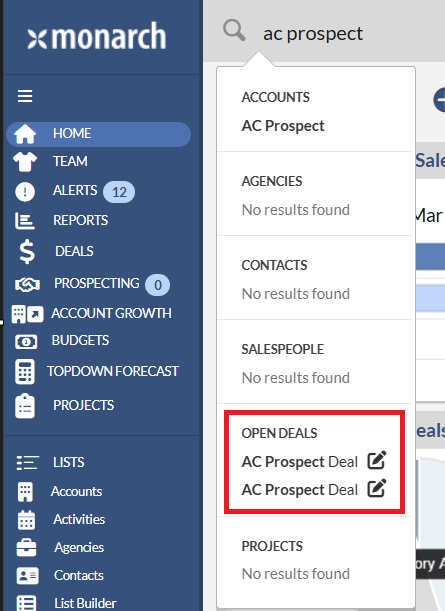
2. On the Deal profile, please scroll down to the Contacts pod to see all the Contacts. This pod will allow Monarch to display the Full name, Title, Company, Phone Number, an Email address of the affiliated contacts.
 Notes:
- Contacts will be automatically added to the Deal when it is created if they have First Name, Last Name, Title, Email, and Primary Phone fields filled in.
- You can remove a contact that has been added to a deal by clicking on the menu icon on each contact row and choosing the Remove option.
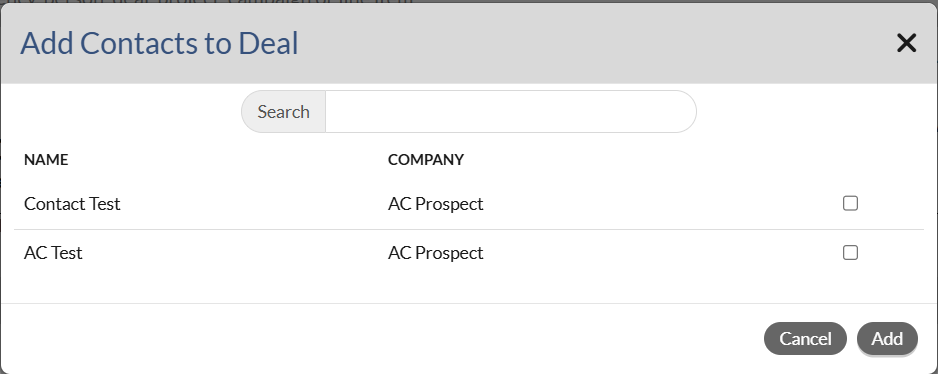
 - You can add additional contacts to a deal by clicking on the “+” Plus sign icon that appears when hovering over the contacts pod. This will bring up a modal window allowing you to select checkboxes next to the contacts that are part of the Account and/or Agency on your deal and add them. Please note that if you are in a Sales Stage that requires contacts have the First Name, Last Name, Title, Email, and Primary phone that you will not be able to add those contacts without first updating their information.

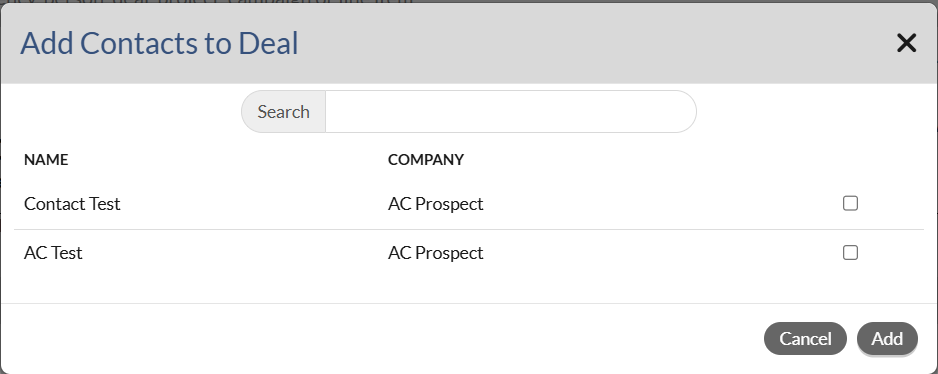
- If no contact is shown on the Add Contacts to Deal. To add a Contact, please follow the below steps:
- click the (+)Add button at the top, select Contact, fill out the required information and click the Save button.
- Navigate to the Deal profile that you wish to add a Contact by typing in the Deal name on the global search and click the Deal name on the OPEN Deals section on the pop-up list.
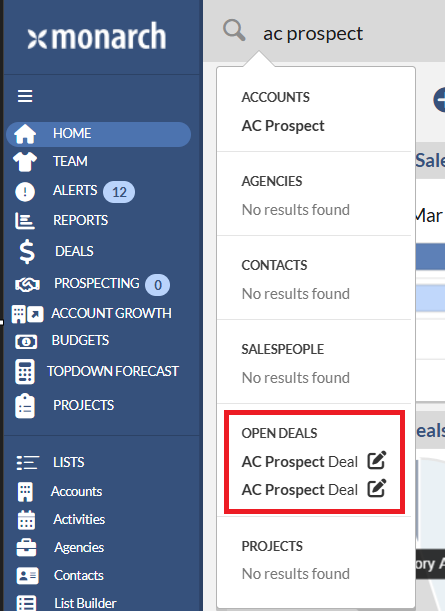
- On the Contact profile, scroll down to the Contacts Pod, hover over the Contacts pod and click on the "+" Plus sign icon that appears on the right top of the pod

- This will bring up a modal window allowing you to select checkboxes next to the contacts that are part of the Account and/or Agency on your deal and add them. Please note that if you are in a Sales Stage that requires contacts have the First Name, Last Name, Title, Email, and Primary phone that you will not be able to add those contacts without first updating their information.