
The report shows booked dollars alongside the TopDown Forecast, and will also show your overall Local/National/Political/Digital forecast as it rolls up to the appropriate Rev Type grouping.
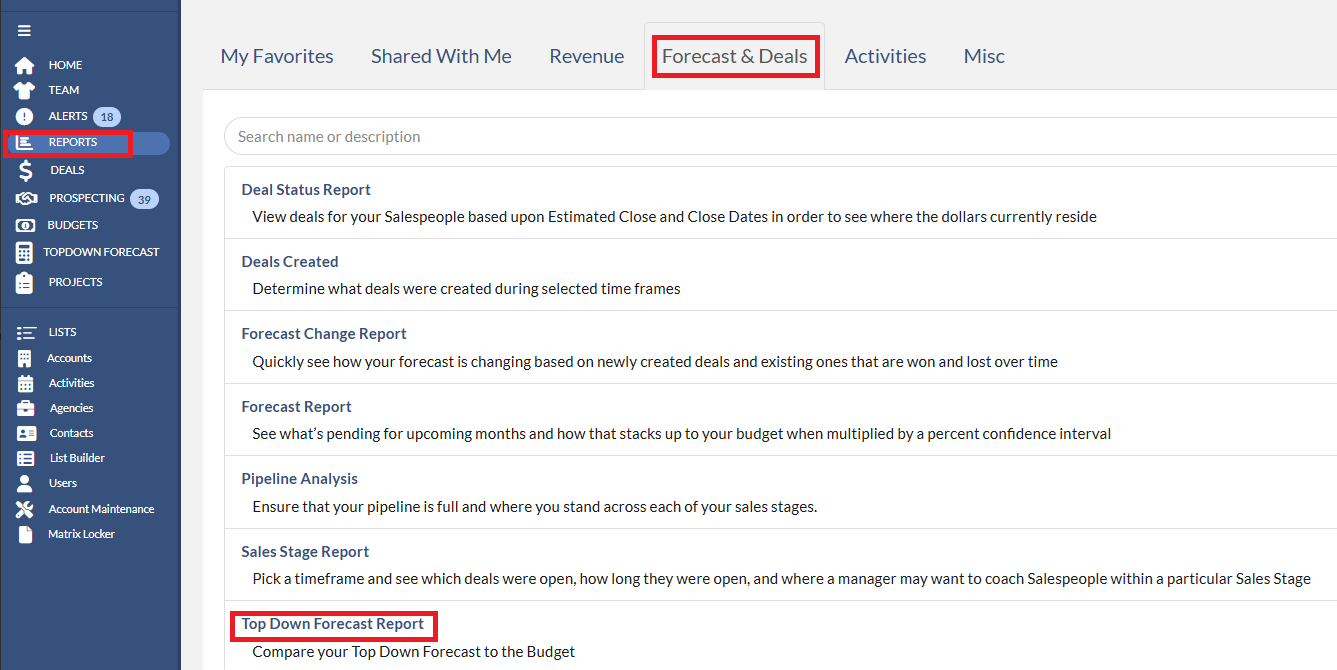
To access the Top Down Forecast Report, please follow the below instructions:
1. Please navigate to Reports on the menu bar.
2. Click Forecast & Deals tab.
3. Click Top Down Forecast Report link.
On the Options screen, you will be presented with the below options to build your report.
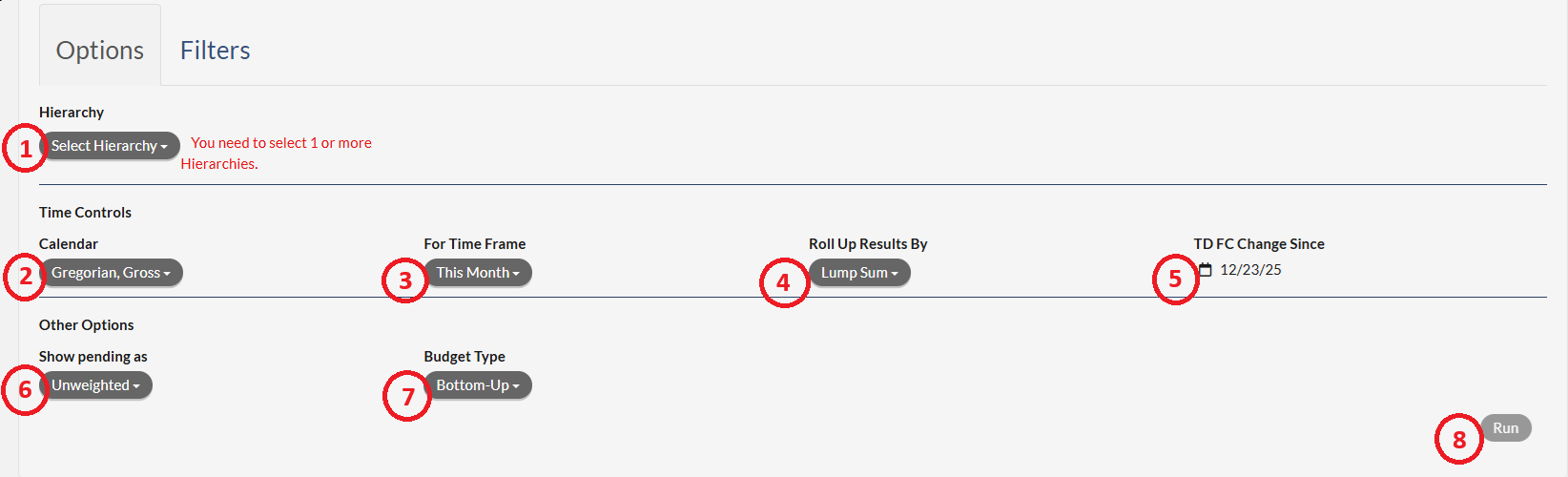
1. Hierarchy Selection - in this drop-down you may select the attribute(s) that are to be on the report.
2. Calendar Selection - in this drop-down you may select what calendar type the report will utilize.
3. For Time Frame Selection - in this drop-down you may select the time frame of the report.
4. Roll Up Results By Selection - in this drop-down you may select how you may want to roll up the results by a lump sum or by a time period, such as a month.
5. TD FC Change Since - this option allows you to compare a historical TD FC value to today’s value. Default value will be 7 days ago. You pick the date, and we will display it as the columns of TD FC as of <DATE> and TD FC Change from <DATE>. Note that the Forecast column on this report is the normal forecast that you would see on the Forecast report so that it may be compared against the TD FC.
6. Show Pending and Forecast As Selection - Show pending and forecast as Unweighted, Weighted (a confidence percentage is applied to the pending values according to individual deals), or display both amounts at the same time on a report.
7. Budget Type Selection - allows you to choose a Bottom-Up or Top-Down view of the budget. This functionality is only available for managers. The Top-Down option will only be useful if you are budgeting Top-Down.
8. Run Button - once all options have been selected, clicking the Run button will run the report.
Note that clicking the Filters tab will allow you to select or not select various data points or groups within the report.

Once the report is run, the screen will display the report based on the Options and Filters selected. A view like the below will appear.
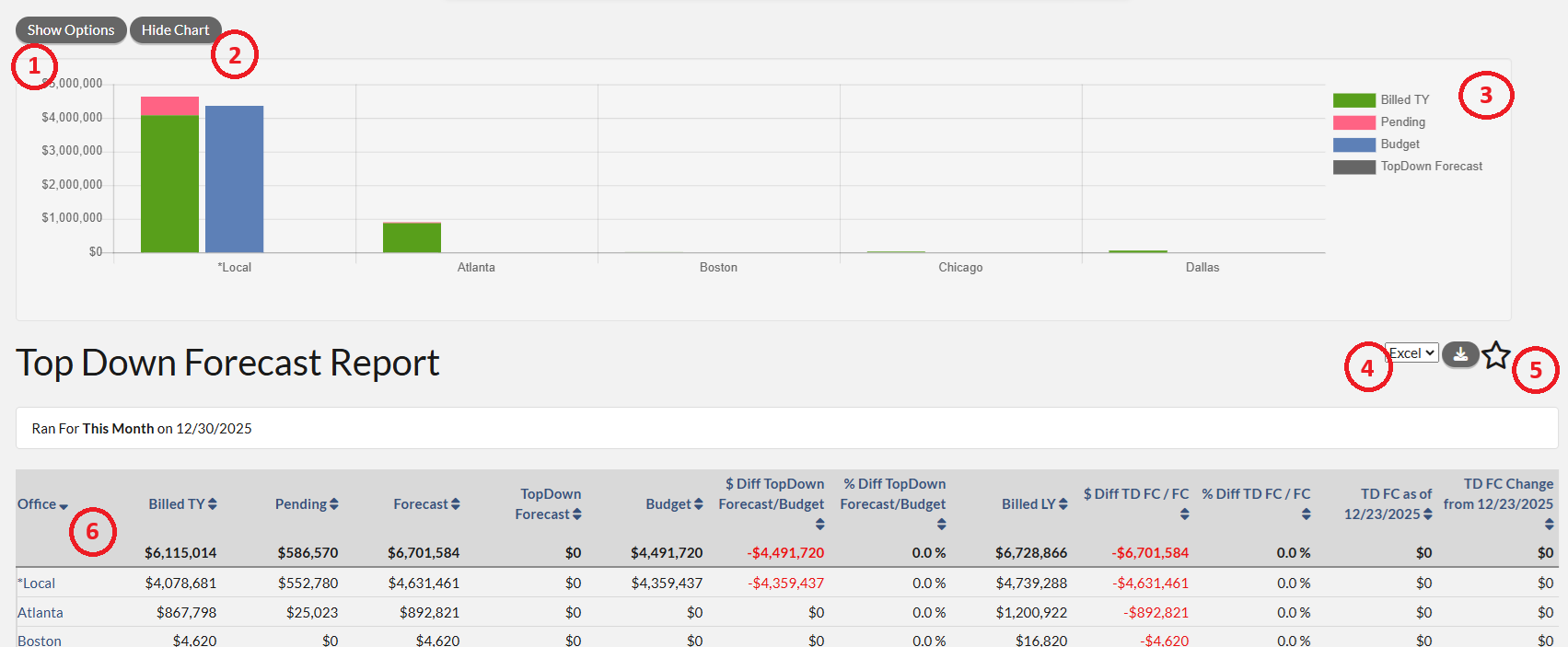
- Show Option - clicking this button will show the Options and Filters dialog to edit the report and allow you to re-run the report
- Hide Chart - clicking this button will remove the chart from the view
- Chart Field - the report will display a line chart showing the trending over the time frame that was selected
- Favorite Icon - clicking the Star icon will allow you to save the report has a favorite. Once saved as a favorite, the report can be shared to other users
- Download - in the drop-down a user can select to export the data in either a .csv format or Microsoft Excel format. Clicking the icon next to the drop down will download the report in the selected format
- Report Data - the table at the bottom of the screen is the data from the report. The Forecast Report is formatted so that the hierarchy is on the far left, followed by the following columns:
- Billed TY - The amount of dollars booked for the time frame selected.
- Pending - The amount of dollars on Open-Pending Deals for the time frame selected.
- Forecast - Calculation of ((Billed TY) + (Pending)).
- TopDown Forecast - The amount of dollars on TopDown Forecast for the time frame selected.
- Budget - The amount of dollars budgeted for the selected Budget Type (Bottom-Up or Top-Down) in the time frame selected.
- $ Diff TopDown Forecast/Budget - Calculation of ((TopDown Forecast) – (Budget)).
- % Diff TopDown Forecast/Budget - Calculation of ((TopDown Forecast) / (Budget)).
- Billed LY - The amount of dollars booked 1 year prior to the time frame selected.
- $ Diff TD FC/FC - Calculation of ((TopDown Forecast) - (Forecast)).
- %Diff TD FC/FC- Calculation of ((TopDown Forecast) / (Forecast)).
- TD FC as of <DATE> - the amount of dollars on TopDown Forecast for the time frame selected for the TD FC Change Since.
- TD FC Change from <DATE> - Calculation of ((TopDown Forecast) – (TD FC as of <DATE>)).