
The Sales Stage Report allows you to see deals open or closed for a selected timeframe, how long they were open, and where a salesperson and manager may want to work together in order to improve the time within a given sales stage.
To create the Sales Stage Report, please follow the below instruction:
1. Please navigate to Reports on the menu bar.
2. Click the Forecast & Deals tab.
3. Click the Sales Stage Report link.
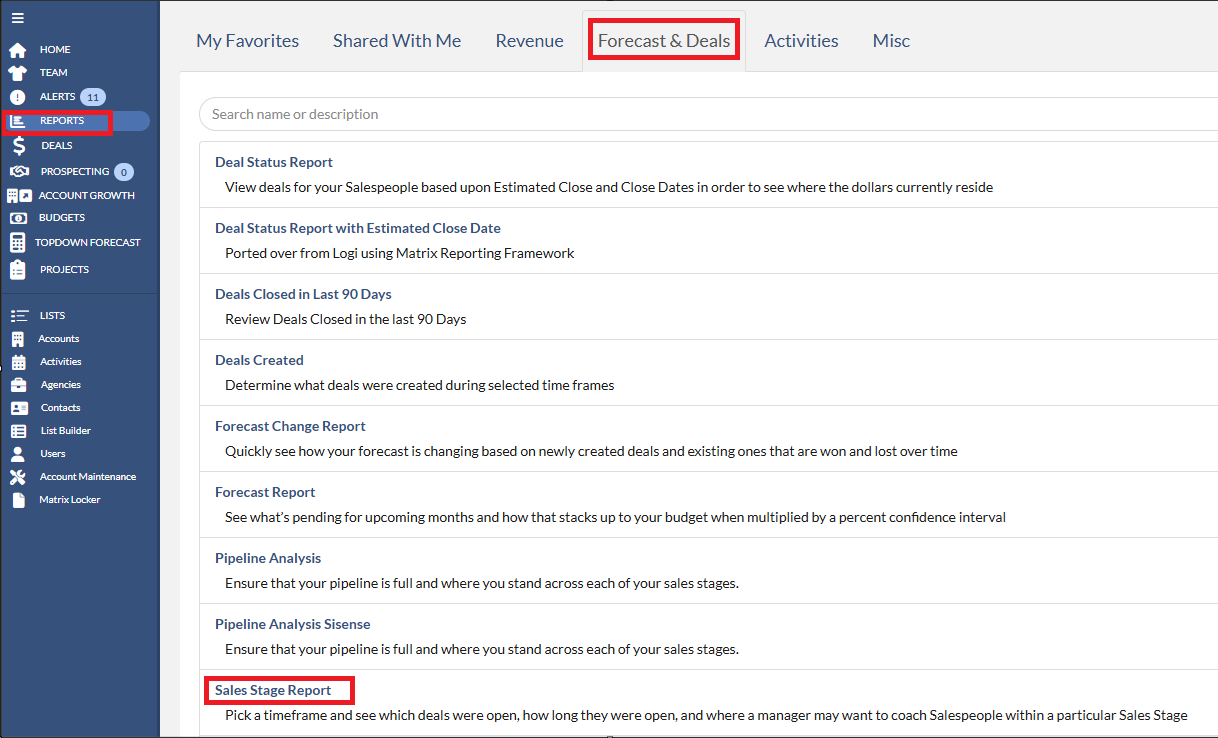
Once you click Sales Stage Report, you will see the screen that looks like below.

1. Time Toggles - Controls the start and end dates for which deals will displays. Remember that it will show any deals that are open within this timeframe OR were actually closed between the dates selected. Matrix will default to the last 30 days. Use this timeframe controls to adjust the dates that you wish to run the report for.
2. Pencil icon - Utilizes filters to remove the data that you do not wish to report on. Then click the Run button.
3. Salesperson Row - This can be expanded to display additional Account and Deal information but contains a lot of great information itself as well
- Deal Last Updated - The last time ANY deal was updated for this salesperson for the timeframe selected.
- Total - The averages days that it takes for a deal to be closed, considering all deals within the timeframe selected.
- Sales Stages - These will very for each customer as Sales Stages are customizable, but they display the average number of days a deal resides within each stage. If no deal has ever entered a specific stage for the timeframe selected then it will display N/A.
- Deal Close Ratio - The percentage of closed deals that are won. Ex. I have 5 Deals: 2 are won, 1 is lost, and 2 remain open. I would have a 66% Deal Close Ratio as we are dividing the deals won (2) by the total closed deals(3).
4. Account Row - This row is visible after expanding the Salesperson row and contains detailed information about the specific Accounts and Deals within the timeframe selected.
- Account - The Account affiliated with the Deal.
- Deal - The Deal affiliated with the Account.
- Deal Last Updated - The last time this particular deal was updated.
- Total - The total number of days this particular deals has been open as well as the date it was originally created.
- Sales Stages - These will vary for each customer as Sales Stages are customizable, but they display the average number of days a deal resides within each stage. If the deal has never entered a specific stage for the timeframe selected then it will display as N/A.
- Deal Status - The current status of the deal. This could be Open-Proposed, Open-Pending, Closed-Won, or Closed-Lost.
5. Download - Initiates the process of downloading the report data to your computer.
Keyword Search: Sales Stage Report, running a sales stage report, run a sales stage report, account, deal, last updated, sales stage, deal status, deal last updated, deal close ratio